
5.6.2. Finalizing Workplans
While it is possible to finalize an active workplan anytime, team managers should consider finalizing the active workplans for the teams they manage on or near their workplan due dates to keep the metrics as accurate as possible.
In order to minimize meeting time, team managers should encourage their teams to login and status their tasks as they complete them so that there are very few left to status at the end of the week. This also has the added advantage of communicating the status of the work to each other especially when there are several tasks on the workplan that depend on each other.
See the Updating Commitments Status for an overview of to status tasks on the workplan.
Identifying Workplan Commitments
While team members can status their tasks in the Kanban, Manage or Gantt Views, a team manager should use the Manage View as it provides the most options and will allow the team manager to see all workplan tasks and their relations in one view.
Select the Manage View, then click the Status ribbon. From there select the workplan from the pull down and click on Workplan Tasks or Committed Remaining

Figure 51 – Identifying Workplan Commitments
Once all Committed Remaining tasks count reaches zero, you can finalize the workplan. Select Finalize Workplan from the ribbon and select the workplan name from the pull down. If the "Finalize Workplan" button is grayed out check the committed remaining count as it has to be zero. If the finalization is successful, you will see all the completed tasks crossed off and the not complete tasks turn into the to-do status so that they go on the next workplan. OnTrack tasks (the orange tasks) will remain as it so that they move to the next workplan once it is created.
vPlanner will update the Workplan metrics when the workplan is finalized.
|
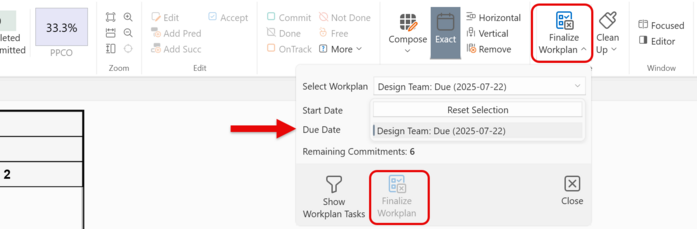
Figure 52 – Finalizing a Workplan