
5.6.1. Creating Workplans
A Team Manager is responsible for overseeing the workstreams assigned to their team. This includes:
-
Creating pull plans
-
Facilitating the Make Ready Process
-
Managing the workplans
A workplan represents a short time window, typically measured in days, used to assess the reliability of the planning system. The core idea is that if:
-
Milestones are set as realistic targets,
-
The pull plan is collaboratively sequenced and regularly updated through Make Ready Planning,
-
Replanning is done regularly to address late paths and maintain alignment with targets,
then the team should be well-positioned to commit to and complete all the required work within each workplan cycle. This consistent execution leads to improved planning reliability over time.
Users with Team Manager role or higher can create workplans for the teams that they can manage. Production Managers or higher can manage workplans for any team.
|
Identifying the Available Work for a Team
While team members can use the Kanban View, the Manage View, or the Gantt View to identify their available work individually, Team Managers should consider working the Manage View and the Focused View as they offer superior tools for visualizing the handoffs between the tasks.
To identify the Available Work for a team, first make sure that the Manage View is the active view, then click on the Commit Ribbon. Select By Team and select the team that you manage. vPlanner will display the selected team's name below the filter buttons and will show the available work count. Click on the Available Work button to show the available tasks to place on the workplan.
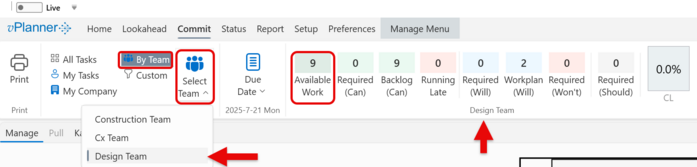
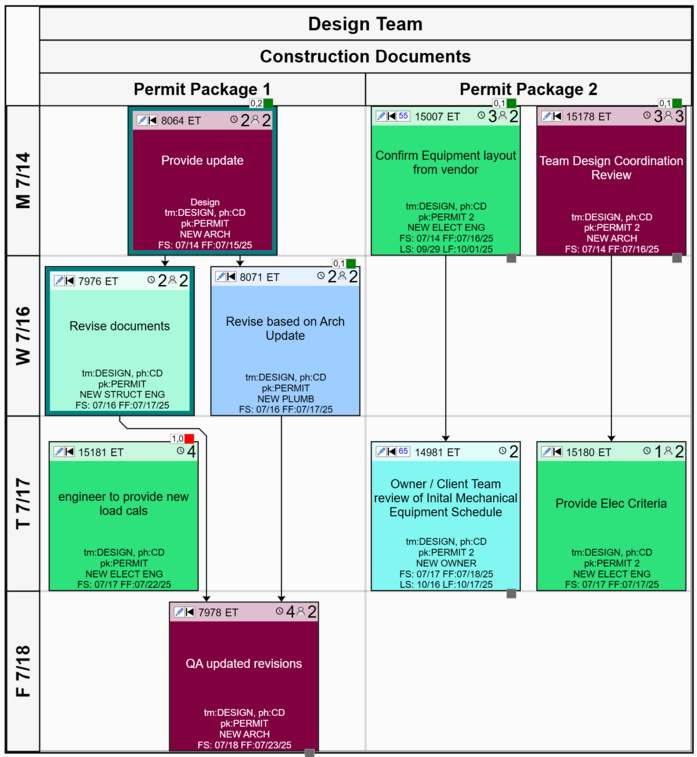
Figure 49 – Available Work for the Team (Design Team in this example)
Making Commitments
If you are working with your team live to make the commitments, instruct them to login and isolate their Available Work and being to make commitments. Better yet, they can come to the meeting after they have committed to what they are ready to start. You will see the tasks that they commit to update on your screen as they make the commitments.
As a team manager, you can also ask team members if they are ready to start a task and commit it for them. If the tasks being committed are required tasks, you will also see the Commitment Level (CL) start to increase. Your goal is to get your team to keep committing until the CL reaches 100%.
Note: If the plan has late paths, the team will not be able to reach 100% and they should re-plan the late paths after the workplan meeting or during the Make Ready Meeting to improved CL for the next commitment cycle.
|
Creating the Workplan
Once all commitments are made, click the New Workplan button to expand the Workplans panel. Select the team you manage, and click Create Workplan. If the workplan is created successfully, the tasks will now have purple borders and CS & CF dates displayed indicating their committed status.
vPlanner will send a single email to each user with a valid account who is assigned tasks on the workplan. The email will include the project name, your name, and their tasks including the task ID, the description, and the due date.
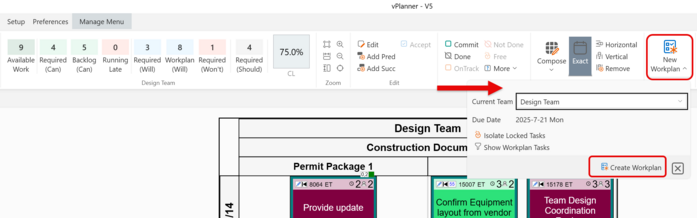
Figure 50 – Creating the New Workplan