
5.5. Updating Commitments Status (Team Members)
You can use the Status ribbon to quickly find the current commitments on a Workplan or Workplans.
Workplan tasks always start with their status set to Committed (purple border). Committed tasks have a Committed Start (CS) and Committed Finish (CF) dates that do not change.
A commitment can be updated to be: Completed, OnTrack, or Not Completed.
Additionally you can add unplanned constraints to committed tasks that can no longer be worked on due to other work that could not be anticipated when the workplan was created.
| ||||||||||
Table 4 – Possible Status Options for Workplan Tasks
|
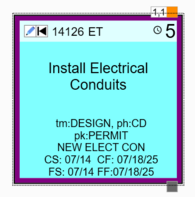
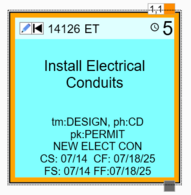
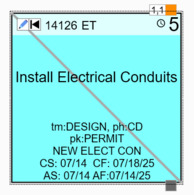
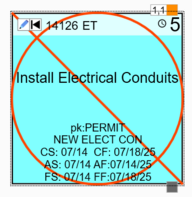
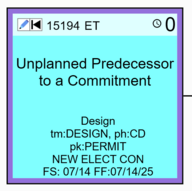
Identifying Workplan Commitments
As a team member you can identify workplan commitments from the Status ribbon and you can do this in one of three ways depending on which interface you are most comfortable with.
Option 1: From the Kanban View
Simply switch to the Kanban View. Click My Tasks or My Company tasks. If you have Commitments they will be shown under the Committed or OnTrack columns. Click and hold the left mouse button and drag the card to the Committed or OnTrack column to update its status and drop it onto a compatible column to the right. This process can be done in realtime with other team members doing the same thing. You may find it useful to also open the Focused view so you can see the pull plan as well.
Notes:
|
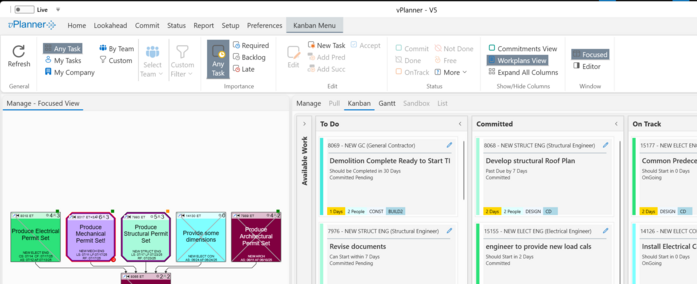
Figure 46 – Updating Commitment Status from the Kanban View
Option 2: Committing from the Manage View
Select the Manage View and click the Status menu in the ribbon to open the Status tools. Click My Tasks or My Company tasks, then click the Workplan Tasks button. vPlanner will display the Commitments on the workplan or workplans and will arrange them into a vertical daily swimlanes layout. To status commitments, select the task or tasks you wish to status, then click the appropriate status button (i.e. OnTrack, Complete, or Not-Complete).
Note: the On Track status is only available if the task's Committed Finish (CF) is in the future. When a task is marked OnTrack vPlanner will automatically reduce its remaining duration. If you reduce the remaining duration to smaller number, then the task Forecast Finish (FS) will pull ahead and any ASAP tasks that follow will forecast to start earlier.
|
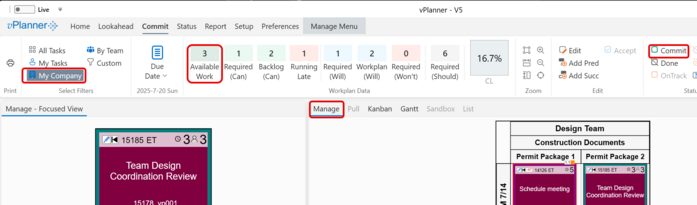
Figure 47 – Updating Commitment Status from the Manage View
Option 3: Committing from the Gantt View
Select the Gantt View and click the Status menu in the ribbon to open the Status tools. Click My Tasks or My Company tasks, then click the Workplan Tasks button. vPlanner will display the committed tasks in the Gantt View. Select from the list and use the Status buttons in the ribbon to update the status.
Note: we recommend that you open the Focused View next to the Gantt View to see the selected task in context of other tasks based on their logic ties.
|
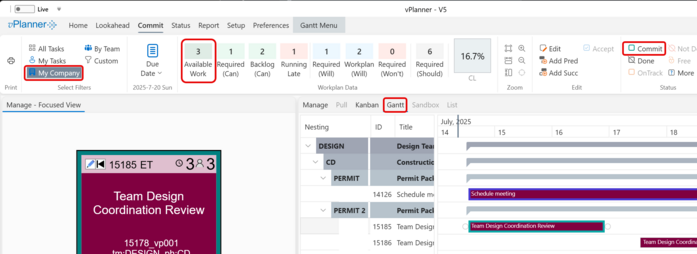
Figure 48 – Updating Commitment Status from the Gantt View