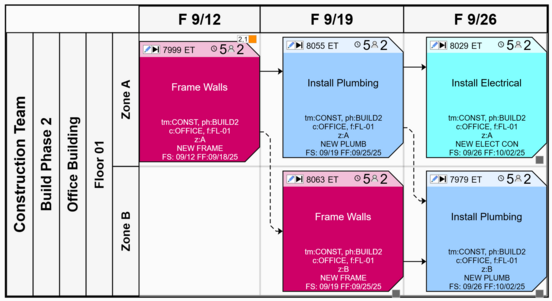
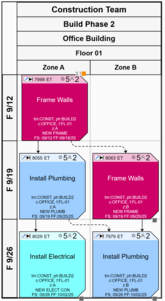
Production Plans can be organized automatically into swimlanes using the Swimlanes Composer in the Manage View.
The Swimlanes Composer
Tasks can be arranged into swimlanes either manually or automatically. vPlanner includes a rule-based system that automatically identifies the best swimlane options for the tasks being displayed. Users can also manually arrange the plan by selected their nesting preferences.
Showing or Hiding Dates
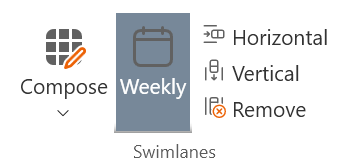
Tasks can be arranged into swimlanes with or without displaying the dates. You can use the Swimlanes Composer to change the dates visibility settings which you can access from the Compose button. The other buttons in the swimlanes ribbon are shortcuts that enable you to apply a previously configured swimlane without opening the composer.
Figure 21 – Swimlanes Tools
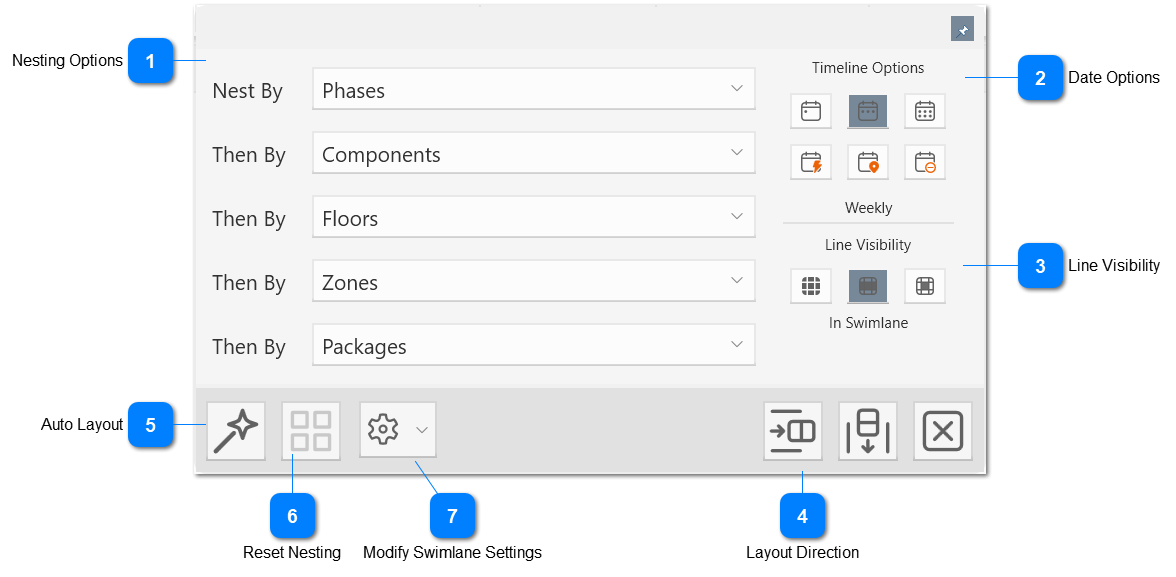
Figure 22 – The Swimlanes Composer
Nesting Options
You can define up to five nesting layers in a swimlane layout by selecting from the pull down next to the nesting option.
You can also quickly rest the choices by clicking the Clear button or you can let vPlanner auto-pick for you the best nesting options by clicking the Wand button.
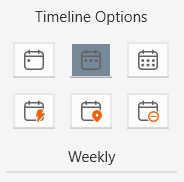
You can enable or disable the display of the dates in a swimlane from the buttons in this section.
Daily: using this option, vPlanner will arrange the tasks into date swimlanes based on the forecast start date. The layout will create a day for each date in the range of dates for the tasks participating in the layout.
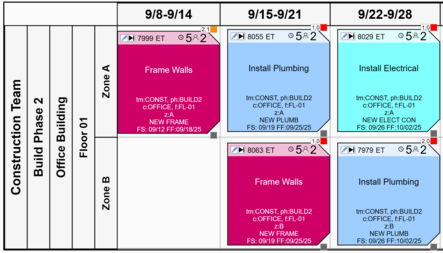
Weekly: using this option, vPlanner will arrange the tasks into calendar weeks. Tasks will be placed in the week in which their forecast start date falls.
Bi-Weekly: similar to weekly but the dates will reflect bi-weekly calendar intervals.
Auto: The auto option will analyze the tasks in the view and will pick the most commonly used duration to set the date interval. This is suitable for takt planning as vPlanner will automatically guess your takt interval based on the tasks in the view.
Exact: the exact option will only create date swimlanes for dates that have tasks in them skipping all other empty dates. This will create a more compact layout.
None: will turn off the dates display in the swimlane.
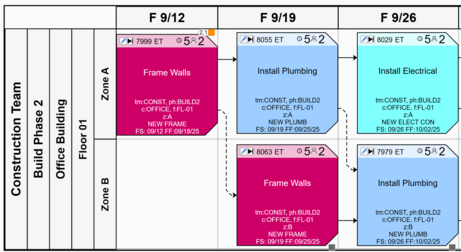
When you click any of the date options, vPlanner will automatically switch the line visibility to In-Swimlane to improve the display of the plan.
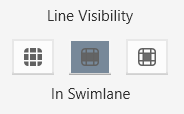
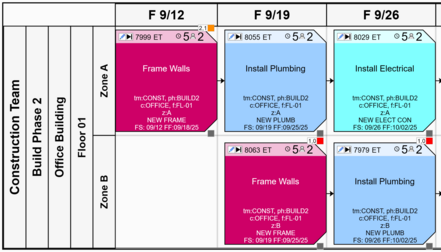
The line visibility setting determines how the layout will display the lines that cross swimlanes when the date option is used. The default is to hide the lines when they cross the swimlanes. This produces tighter layouts. The hidden lines will become visible when you select tasks in the swimlane. You may also enable all lines (first button) and only display the logic ties inside a cell (3rd button).
When you apply a swimlane with the date option set to none, all logic ties will be visible.
The Auto Layout option will analyze the plan and determine the best nesting options for the attributes that are assigned to the task. Using the auto layout will reduce the number of logic ties that cross swimlanes making the layout much easier to follow.
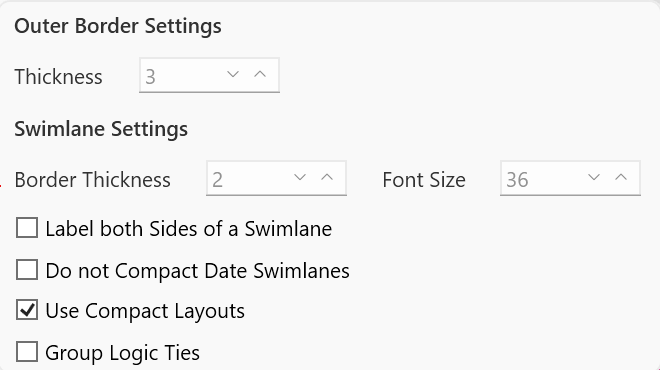
You can configure the visual display for the swimlane layout from this tool. Experiment with the various settings and visualize the impact as you run the layout.