5.3. Make Ready Planning
Make-Ready-Planning (or lookahead planning) is the process of screening the work that can start or finish within a short time frame in the future called the lookahead horizon to ensure that it is ready to start. The goals for the screening review are:
-
Identify any missing tasks or constraints that prevent the tasks in the lookahead from starting.
-
Review that resources are available to start those tasks.
-
Review that the handoffs between those tasks are properly planned and that they are clear. Split tasks with unclear handoffs.
-
Review and replan any late paths or accelerate work that is on a late path.
The Make-Ready-Planning should be done at least weekly. Depending on the issues and the type of work being planned, you may choose to schedule the lookahead review with the entire team or with select members of the team while encouraging each participant to review their lookahead tasks ahead of time.
The stability of the lookahead is key to ensuring reliable execution and if the process is done correctly 100% of the tasks anticipated by the lookahead would be ready to start each week resulting in much higher chances that work will start as planned and will finish as planned.
If your commitment meetings are long and unorganized the cause is usually in the team's failure to properly implement the make ready process.
|
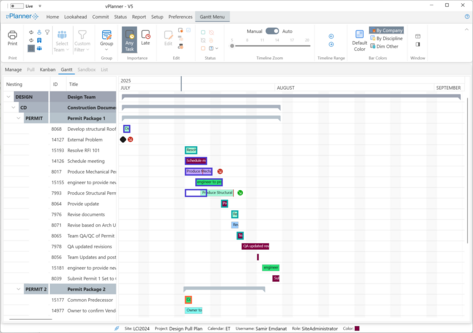
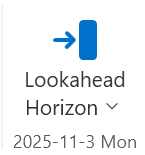
In vPlanner you can review a lookahead either in the Gantt View or in the Manage View and you access the lookahead tools in either case from the Lookahead Ribbon. You should first select one of those working views, then switch to the lookahead ribbon to apply the lookahead.
LPS Screening Rule: vPlanner applies the LPS screening rule automatically; meaning that only the tasks that CAN start or finish within the lookahead horizon are allowed to be on the lookahead. If the plan has late paths, not all the tasks that should start or finish within the lookahead horizon will be included in the lookahead.
|
Finding Your Lookahead Tasks
As a user, you can isolate the lookahead tasks for your company by clicking on the Manage or Gantt views.
-
Select the Lookahead Menu.
-
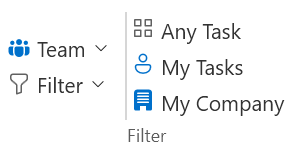
Select a Team from the Teams drop down or Use a Custom Filter.
-
Select My Tasks, or My Company Tasks to see just those tasks or Click Any Task so that you can see all the tasks for the Team or the Custom Filter.The numbers identifying the priority for the tasks are updated. Click the number buttons to see the tasks that match the priority search. vPlanner will then display the lookahead tasks on a weekly calendar.
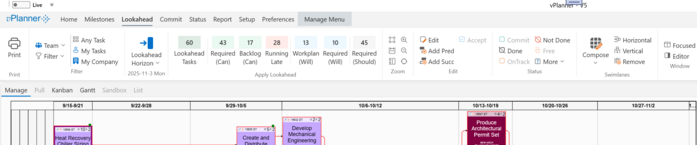
Figure 40 – Finding your Company's Tasks for Make Ready Planning
Example Lookahead Views
| ||||
Table 3 – Example Lookahead Views
|
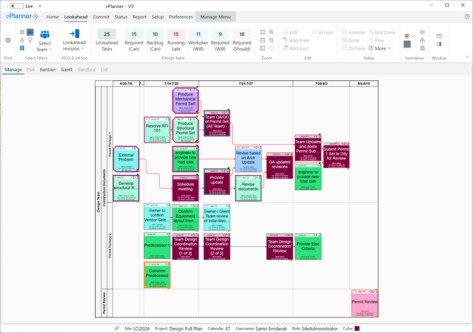
Webinar Recording on Lookahead Planning
The below short video illustrates the lookahead process.
The Lookahead Ribbon Tools





 Apply the Lookahead Results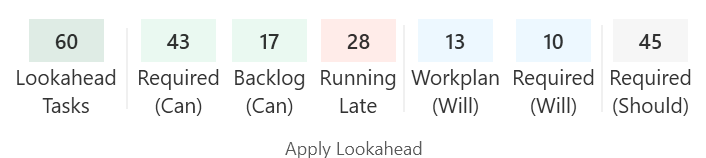 If you press a button in this view, the lookahead results that mach will be shown in the Active View. You can hover over any of the buttons in vPlanner for a short explanation.
Lookahead Tasks: are all the tasks that can start or finish within the lookahead horizon and the active filter.
Required (Can): are the tasks that can start or finish within the lookahead horizon and the active filter from the required tasks.
Backlog (Can): are the tasks that can start or finish within the lookahead horizon and the active filter from the backlog tasks. Backlog tasks will not have an impact on the target milestones.
Running Late: will show the tasks that are running late within the lookahead horizon and the active filter.
Workplan (Will): identifies the tasks that are promised from the tasks that are within the lookahead.
Required (Will): identifies the required tasks that are promised from the tasks that are within the lookahead.
Required (Should): identifies the tasks that should start or finish within the lookahead horizon and the active filter. If the Required Should count is more than the Required Can part, then the plan has late paths and you should schedule re-planning work sessions with the team to recover time and accelerate the work.
|


 Task Editing Tools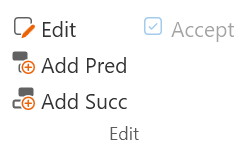 You can edit selected tasks in the Active View. See Task Editing in the Common Tools section.
|
 Task Status Tools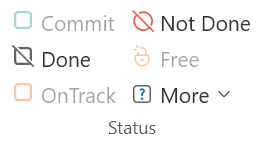 You can status selected tasks in the Active View. See Task Status Tools in the Common Tools section.
|