
4.7.4. Task Status Tools
The task status tools are available in all the Working Views and in the Lookahead, Commit, and Status ribbons. The buttons will be grayed out by default when there is nothing selected. When you select a compatible task or a set of tasks, the compatible buttons will highlight and you can status the selection accordingly.
For an overview of the various status options and their meaning visit this section: Visual Planning Vocabulary.

Figure 38 – Task Status Tools
Commit: When an available task is selected, you can use the Commit tool to move it to the To-Do status (i.e., Committed Pending). This indicates to vPlanner that the task can now be placed as a Commitment on a workplan when the workplan is created by a Team Manager.
Done: You can mark any task as Done if your permissions allow you to do so. vPlanner will handle the nuance of tracking if this task was completed from a non-committed task, from a commitment or an OnTrack task so that the metrics are tracked correctly.
OnTrack: The OnTrack status can only be assigned to a Committed task that is on a workplan if the current date is before the Task's Committed Finish (CF) date. The OnTrack status indicates that the task will finish on or before its CF date. To make the OnTrack task finish earlier than the Committed Finish date reduce its remaining duration manually and it will pull ahead.
Not Done: A workplan commitment that cannot be completed as promised should be marked as Not Done. This will allow you to set a reason for variance and update the remaining duration. When a commitment is marked Not-Done its CS and CF dates will be unlocked and it will forecast forward.
Free: Use the free tool to unlock a task that shows a lock symbol indicating that it checked out to another user. This will free the task so it can be edited but the pending other user changes will be ignored. It is always good practice to ask the user to save their changes before resorting to freeing a task.
The More button has additional tools for updating the task status or rolling back a previously assigned status. Certain tools will be enabled automatically when a compatible task or tasks are selected.
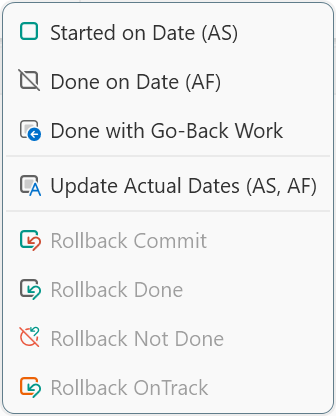
Figure 39 – Status tools under the More Pull Down