4.1.6. Link Management
A Link and a Constraint are synonyms in vPlanner. Both are intended to identify the tie between two activities. The source of the link represents the predecessor or (constraining activity).
Creation and removal of links requires that you have the proper access permissions to the target of the link. If you cannot modify the target you will not be able to modify the link.
|
Standard Link Types in vPlanner
-
Logic Links (Finish to Start): Those are represented by solid lines in vPlanner. They can be either black if they are not late or red if they are late.
-
Resource Links (Finish to Start): Those work similar to Logic Links but they are represented as dashed lines to indicate that they represent crew flow visually. They can also be red (late) or black (not late).
-
Suspended Links: are represented by thick gray lines in vPlanner and provide a way to temporarily exclude a link from the calculations without deleting to for what-if type scenarios.Note: when importing from CPM tools vPlanner will also import Start-to-Start, Finish-to-Finish, and Start-to-Finish links that are often used in conventional schedule. It is important for you to know that those types of links are imported for visualization purposes so that you know what type of logic exists in the CPM schedule but they are not used in vPlanner calculations. You will need to pay attention to those as they often mask important handoffs that should be captured with new tasks when you build you production plan in vPlanner.
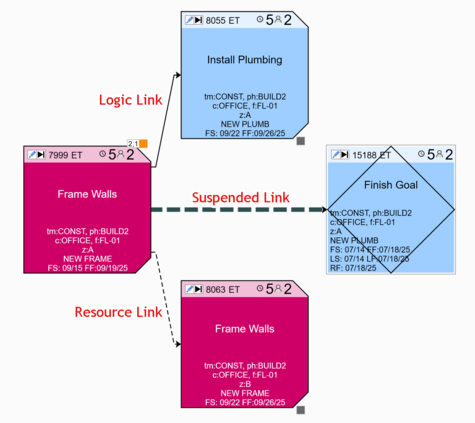
Figure 23 – Types of Links
Managing Links
Link Management tools can be used to filter or modify the links from the Manage View.
The "Resource" button is a toggle button that switches the new link creation mode to be resource or crew links so that newly added links are automatically set to resource links. It can be toggled back to the default by clicking the button again.
Links can also be edited from the right-click menu if you have permission to modify the specific link.
Filtering Tasks Based on Link Type
The filter link tools are used to identify specific tasks in the plan based on the link types between them. You can for example isolate all the tasks that are linked by Resource Links found in the current view or found in the entire plan. Similarly you can find all the tasks linked by suspended links in the current view or the entire plan.
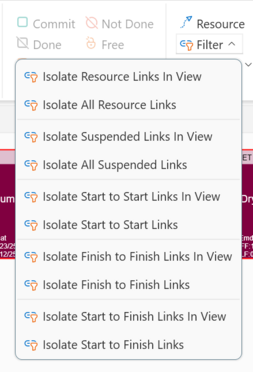
Figure 24 – Link Filtering Tools
Link Editing Tools
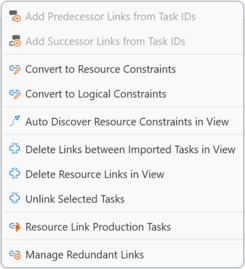
Figure 25 – Link Editing Menu Items
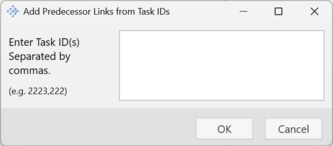
Add Predecessor (or Successor) Links from Task IDs
Those two tools work on a selection of a single task. Make the selection first, then select to either add predecessor or successor links from the drop-down menu. An input window will show up where you can type the task ID or IDs separated by commas of the task to link from to to link to from the currently selected task. You need to have appropriate permissions for this work.
The rest of the link editing tools can be used modify one selected link or multiple links.
Convert to Resource (or Logical) Constraints
You can convert any selection of links from resource links to logic links or visa versa.
Auto Discover Resource Constraints in View
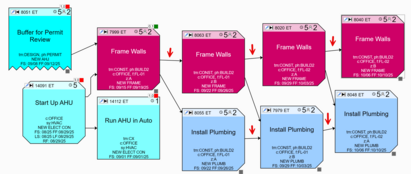
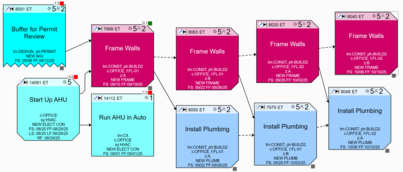
This tool is useful when your plan includes tasks that represent crew flow with logic ties between them. vPlanner can analyze the plan to discover which existing links should be automatically converted to resource links and will prompt you to convert them.
 |
 |
|
Links marked with arrows should be resource links
|
After resource links are discovered
|
Deleting Certain Links
There are various batch link deletion tools that enable you to remove certain types of links without selecting them one at a time.
-
Delete Links Between Imported Tasks: this tool is useful if you import CPM tasks and logic and discover that there are better ways to sequence the work by redoing the plan in vPlanner. First filter the imported tasks into view. Then use the menu item to remove the links between the imported tasks. Identify which imported tasks should serve as milestones and convert them to Planning Markers or Milestones. Then select the rest of the imported tasks and convert them to vPlanner activities. At this point you can re-arrange and re-link those tasks or add new ones. Or you can create a Pull View and invite other team members for a pull plan meeting to collaboratively plan them.
-
Delete Resource Links in View: this tool is useful if you want to change the crew flow after you have resource links a series of tasks. Filter the tasks that have the crew links into a view, use the tool to remove the resource links in one click, then create new resource links to represent the new flow.
-
Unlink Selected Tasks: does just that. It will remove the links between the tasks in the selection you make.
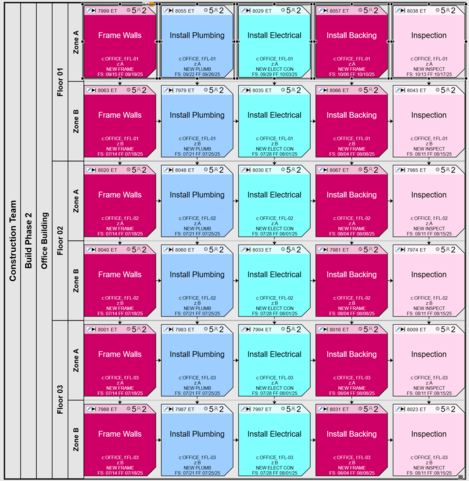
Resource Link Production Tasks
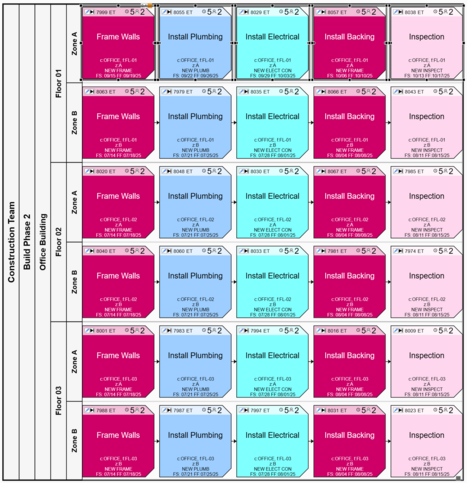
Use this tool to semi-automate the crew linking of takt activities. To use this tool, arrange the standard work tasks into a grid (i.e., using swimlane layout without dates) where each row represents the standard work in a zone. Select the first row tasks then use the tool to automatically create the crew links. vPlanner will temporarily switch to offline mode so you can visualize the result. You can then either save or discard of the changes and go back to live mode.
 |
 |
|
Before applying Resource Links
|
After applying Resource Links
|
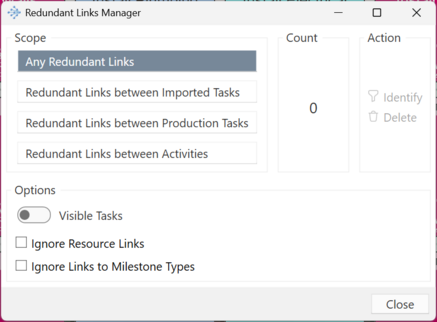
Redundant Links
You can use the redundant links tool to identify redundant links. Redundant links clutter the display of the plan and add no useful purpose for the calculations. If you import from CPM tools they usually come with excessive use of unnecessary links. For example novice CPM users may link a contract signing activity to every task that a trade will need to perform on the project resulting in thousands of redundant links that make it impossible to follow the true logic of the work. vPlanner can automatically select redundant links so you can remove them without affecting how your plan calculates making the plan much easier to follow.
Using the tool, you can pick which kinds of redundant links to find, the Count will show you how many exist. The Action section allows you to highlight them or delete them once they are identified.
You can also limit the search scope to the visible task or the entire plan. You can also choose to skip the resource links and the links to milestones from being considered redundant.