The Late Paths tool is used to identify the late paths in the plan so that the team can focus on re-planning them to get back on track.
A late path emerges when there is not enough time to perform the remaining work and still achieve the desired target milestone. A late path can also emerge if there is not enough time between two milestones that are in the future to do the work that is constrained by those two milestones.
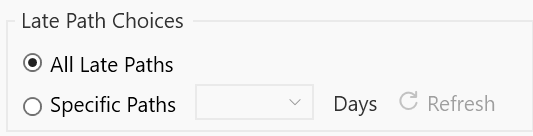
The late paths tools can identify all late paths, the late paths associated with a specific team or specific late paths based on how late they are.
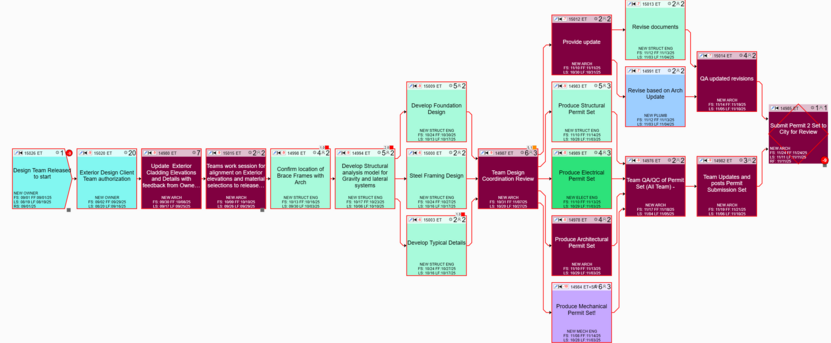
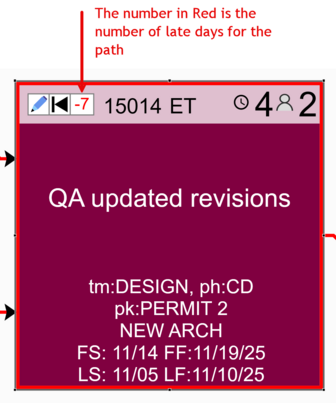
The below is an example of the late path analysis for paths that are six or more days late.
Figure 19 – Late Path Analysis Result
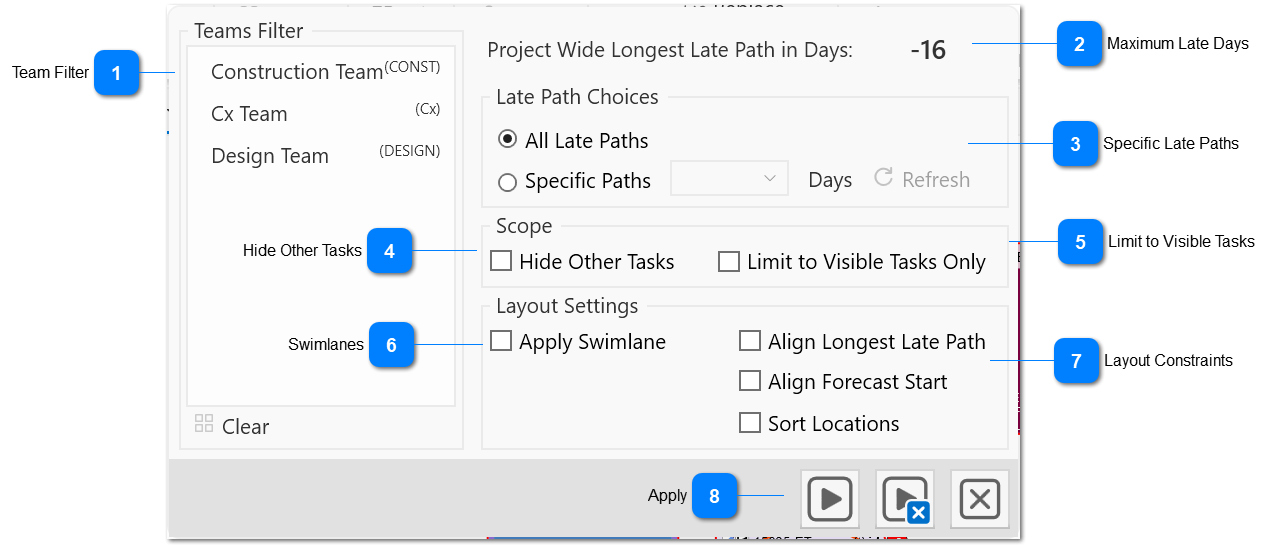
Figure 20 – The Late Paths Panel
Team Filter
You can restrict the analysis to the tasks associated with a specific team or for all the tasks in the project if no team is selected.
When this option is enabled, the search for late paths will be limited to the visible tasks in the Manage View, otherwise all late paths in the entire project will be considered.
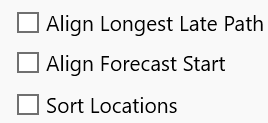
Enable this option to force the tasks on the longest late path to be aligned to the extent possible. This helps with the review of the longest late path.
Align Forecast Start
Enable this option to automatically arrange the tasks into implicit grid so that each column in the grid contains tasks with the same forecast start state.
Sort Locations
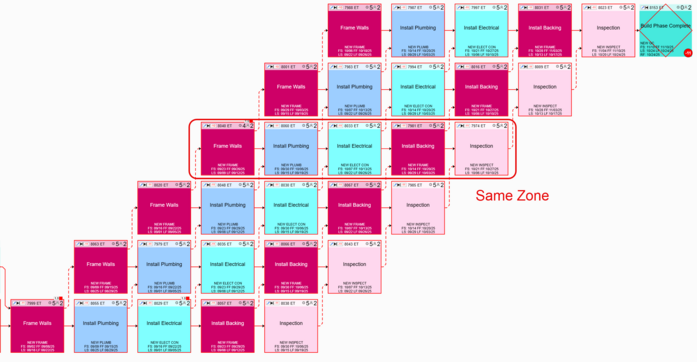
Enable this option to enable location constraints (Component, Floor, Zone) so that tasks that have the same location are arranged together in the layout.