Use the Longest Path Analysis tool to isolate the longest path or paths to a specific task. You can specify up to 100 paths and isolate them in the view.
Here is a sample result after running the tool to isolate the two top longest paths from a specific milestone.
Figure 17 – Top Two Longest Paths to a Milestone
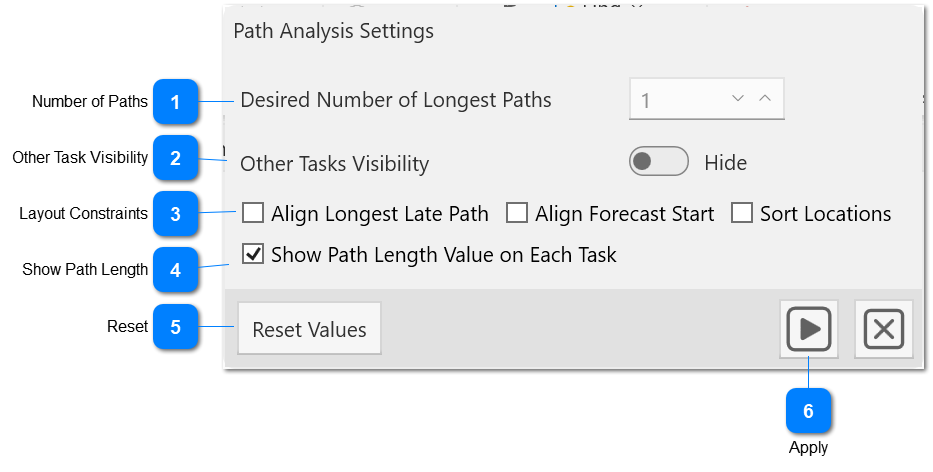
Figure 18 – Longest Paths Panel
Number of Paths
Set the number of paths to show when running the longest path analysis.
Enable this option to force the tasks on the longest late path to be aligned to the extent possible. This helps with the review of the longest late path.
Align Forecast Start
Enable this option to automatically arrange the tasks into implicit grid so that each column in the grid contains tasks with the same forecast start state.
Sort Locations
Enable this option to enable location constraints (Component, Floor, Zone) so that tasks that have the same location are arranged together in the layout.
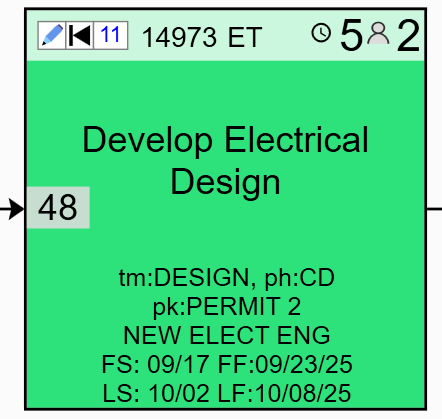
When the longest path analysis is performed with this option enabled, each task will have an overlay to display the path length from that task to the target task used to start the analysis measured in business days. The number will be shown in a gray box on the center-left side of the task. This is helpful when trying to identify possible ways to recover time along the longest paths. This can be reset by clicking the Reset Values button.
Clicking this button will reset the path length overlay shown on the tasks from a previous run of the longest paths tool and will restore the task display to their normal state.