4.5. The Kanban View
The Kanban View presents available work and workplan tasks in a simplified, visual format, enabling team members to easily identify tasks and update their statuses. Integrated with the overall workstreams in the project, the Kanban View displays only the tasks that fall within a short lookahead horizon, ensuring focus on immediate priorities.
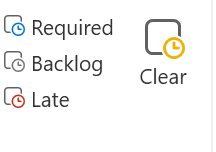
This view includes tools to review:
-
Required tasks
-
Backlog tasks
-
Late tasks
-
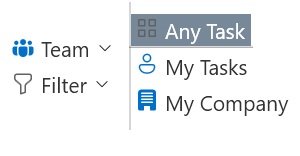
All tasks
Tasks can also be filtered in various ways to suit your workflow.
The Kanban View is connected to the Focused View, allowing you to examine task predecessors and successors by simply clicking on a task in the Kanban View while the Focused View is visible.
Updating Task Status
To update a task’s status:
1. Left click and hold the task card.
2. Drag it to the desired column.
3. If the target column is compatible with the task’s current status, you can drop it there. Otherwise, a “not allowed” icon will appear.
Available Work Column
The Available Work column only displays tasks that are ready to start—meaning all their predecessors are either complete or committed. If a constraint is added to a task in this column, the constraint will be shown, and the task will be removed from the column, as it is no longer considered available.
Note: Active filters may cause tasks to disappear from view. If something seems missing, check that your filters are appropriately set.
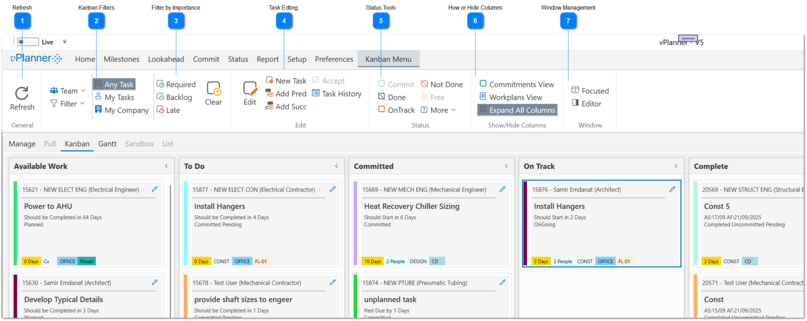



 Task Edting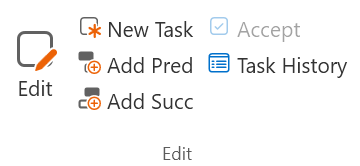 The task editing tools work in a similar way to the Manage View. The only difference is that you can edit only one task at a time. See Editing Tasks for more information.
|
 Status Tools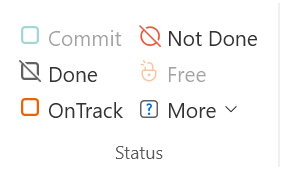 The status tools work in a similar way to the Manage View. The only difference is that you can status one task at a time. See Status Tools for more information.
|