4.6. The Gantt View

The Gantt View offers a familiar visual representation of workstreams, especially for users with a Critical Path Method (CPM) background. While it resembles a traditional CPM Gantt chart, it's important to note that the tasks displayed are production plan tasks—driven by vPlanner’s unique production-based calculations based on pull, not CPM logic.

Key features of the Gantt View include:

  • Task Roll-Up: Summarize tasks into high-level summary bars for a clearer overview.
  • Custom Grouping: Group tasks using up to five layers of attribute definitions, similar to the Swimlanes Composer.
  • Integrated Navigation: Display the Gantt View alongside the Focused View. Clicking a task row in the Gantt grid will isolate that task in the Focused View, allowing you to easily review its predecessors and successors.

    Understanding Task Graphics

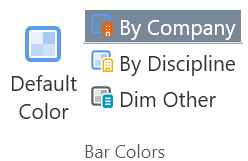
Tasks bar colors are based on company colors by default.  This setting can be changed from the Bar Colors section of the ribbon.  The tan colored underlay bar in the timeline indicates the priority of the task represented by its LS and LF dates.  The colored bar on top indicates is forecast dates (FS, FF).  When the tan bar and the task bar are on top of each other the task is on track.  When the tan bar is to the left, the task is late and when it is to the right the task is early.

Figure 33 – Understanding Task Priority
The task graphics of the timeline are designed to provide information about the status of the task and its priority.  Workplan tasks are shown with a thicker border and the color of the border indicates the task status color similar to the Manage View. 
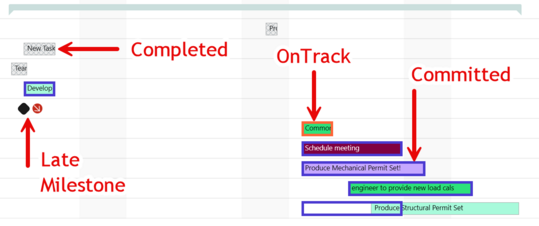
Figure 34 – Understanding Timeline Task Status

Figure 35 – Committed Task Priority
4.6. The Gantt View
1

Print

1. Print
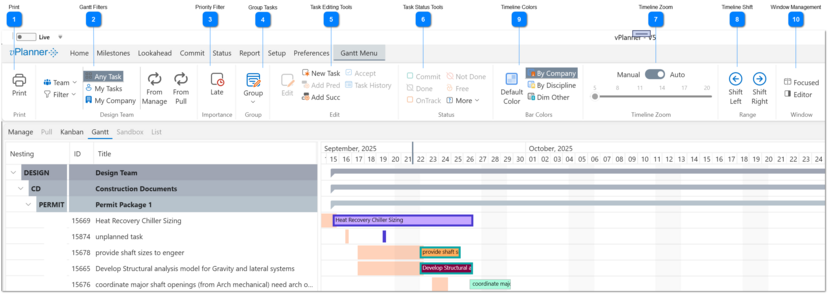
Sends the content of the Gantt View to the print preview panel.  You can also use the shortcut CNTR-P.
2

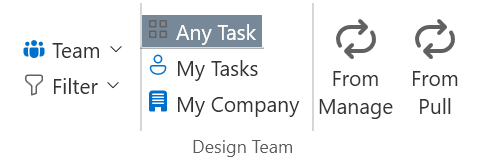
Gantt Filters

2. Gantt Filters
You can use the filters to control which tasks to show in the Gantt View 
  • Tier 1 Filters
  • Team: select a team from the pull down to make that the active team.
  • Custom: open the task filter so you can create a very customized search through the plan.
  • Tier 2 Filters are applied after to the result of the Tier 1 Filters.
  • My Tasks: Only tasks assigned to you will be shown in the Kanban View.
  • My Company: Only tasks assigned to your company will be shown in the view.
  • Any Task: Will show all the tasks found in the Tier 1 filters.
  • From Manage: will synchronize the Gantt tasks with the visible tasks in the Manage View.
  • From Pull: If there is an active Pull View, this button will synchronize the Gantt View with the tasks shown in the Pull View.
3

Priority Filter

3. Priority Filter
Use the priority filter to display all tasks that satisfy the filter or just the ones that are running late.
4

Group Tasks

4. Group Tasks
The Group panel works like the Swimlanes Composer so you can pick how the Gantt View tasks should be grouped based on their assigned attributes.
5

Task Editing Tools

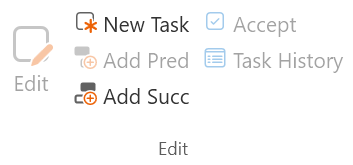
5. Task Editing Tools
The task editing tools work in a similar way to the Manage View.  The only difference is that you can edit only one task at a time.  See Editing Tasks for more information.
6

Task Status Tools

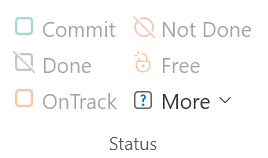
6. Task Status Tools
The status tools work in a similar way to the Manage View.  The only difference is that you can status one task at a time.  See Status Tools for more information.
7

Timeline Zoom

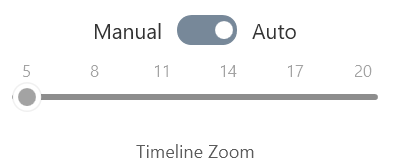
7. Timeline Zoom
Use the timeline zoom to adjust the zoom factor for the timeline.  The default setting is Auto and ensures that the entire timeline visible range of dates fits the available space.  You can switch the slider to manual and then adjust the zoom factor from the slider bar.
8

Timeline Shift

8. Timeline Shift
Use those buttons to shift the entire timeline to the left or the right.
9

Timeline Colors

9. Timeline Colors
The tasks in the timeline will be displayed using each task's company color by default.  You can adjust this to display the colors by discipline or use the dim other option to gray out all tasks except for those assigned to your company.  The uses the default color (light blue) to display the forecast dates.
10

Window Management

10. Window Management
You can use those buttons to show or hide the Focused View and the Task Editor Panel.