4.7.3. Task Editing Tools
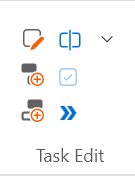
The majority of the Task Editing Tools can be used in all working views. You can edit a task if you see a pencil icon on the upper-left corner of the task. Depending on your screen resolution and due to the responsive ribbon design the buttons may take different sizes so that all the ribbon tools are shown.
 |
 |
|
Expanded Icons
|
Minimized Icons
|
You can edit tasks using the task editor window (the focus of this section) or through the docked task editor panel which you can activate from any working view ribbon under the Window section.
|
The task editing ribbon buttons will usually be grayed out until a compatible task or a set of tasks are selected then the applicable buttons will be enabled. Multi-Task editing is possible in the Manage, Pull, and Sandbox Views. The Kanban View and the Gantt View allow for single task editing.
The followings explain each of the Edit options:
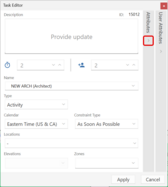
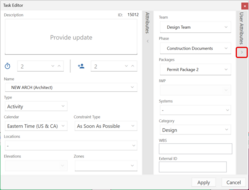
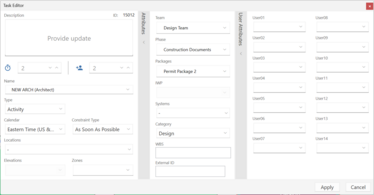
Edit: The Edit button will bring up the Task Editor Window. It will allow you to edit a single task if only one task is selected or to edit multiple tasks if the selection includes several tasks. In single task editing mode the editor will look like the below images.
| ||||||
Table 2 – Editor in Single Edit Mode
|
In multi-task edit mode, there will be check boxes to the right of each attribute. The check boxes will get checked automatically when you try to make changes to an attribute value. In multi-edit mode only attributes with their check boxes checked will be updated for the selection. If you need to clear an attribute, simply check its box without assigning it a value and then click Apply.
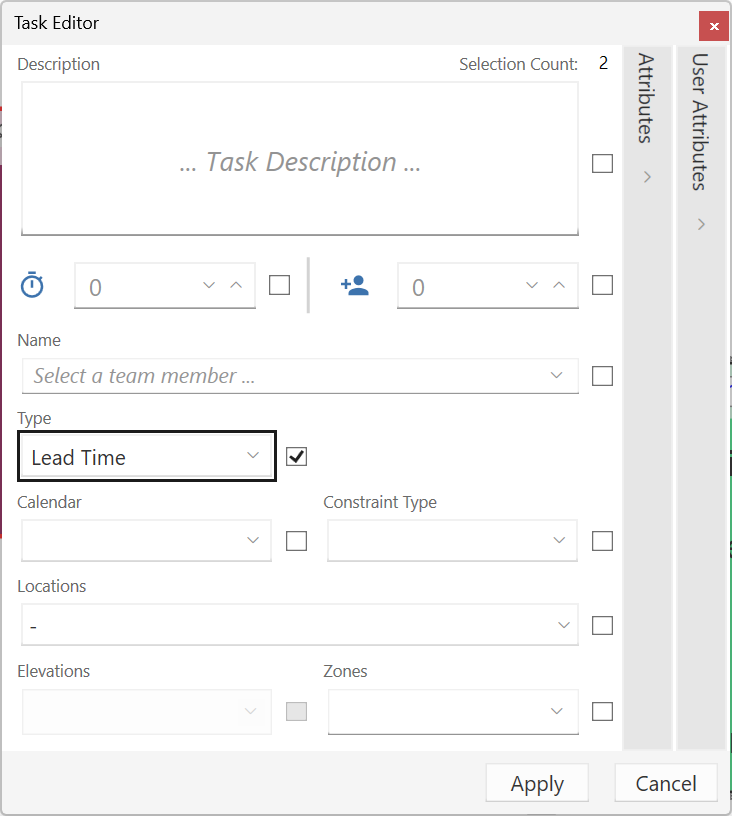
Figure 36 – The Task Editor in Multi-Task Edit Mode
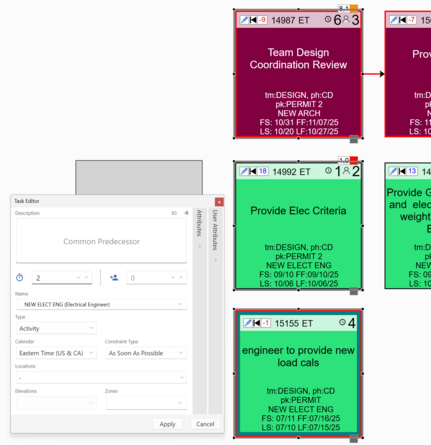
Add Predecessor: This tool will also bring up the task editor so you can type the new task that will be a predecessor to the selected task or tasks. A new task will be created and will be automatically linked to the selection.
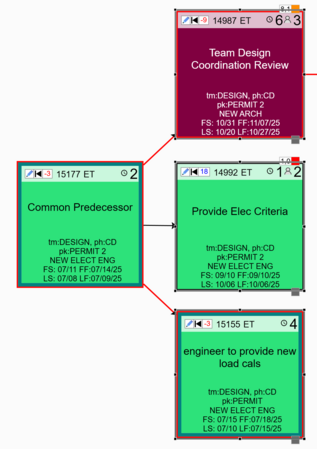
The below image shows the Add Predecessor in action. A selection was made consisting of the 3 tasks shown and the Add Predecessor button was clicked. When the apply button is Clicked in the task editor the new task is added and is linked to the 3 tasks in the selection.
 |
 |
|
Creating a Common Predecessor
|
The Result
|
Add Successor: This tool works the same as the Predecessors tool but the result will be a successor to the selection.
Accept Request: When the selection includes a task that is a request or all the tasks in the selection are requests and you have edit rights to the selection, the Accept button will be highlighted.
Requests can be modified by any vPlanner user with User level access or above. However only a user that is responsible for the task or the tasks can accept a request. Once accepted a request turns into an Activity and will assume the normal edit permissions.
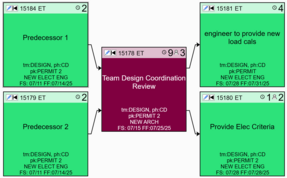
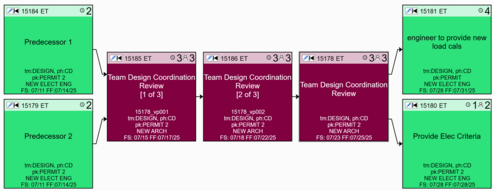
Splitting Tasks: The Split tool allows you to divide a task into multiple tasks and maintain the logic ties between the new tasks and the original task's predecessors and successors. The maximum number of tasks for a split can be up to the duration of the original task.
Splitting Examples:
-
Splitting a 10 day activity into 2 will result in two 5 day activities.
-
Splitting a 9 day activity into 3 will result in three three-day activities.
-
Splitting an imported task will convert it into two tasks. One is a Start Date and one is a Planning Marking and both will have zero duration. The RS and RF dates will be assigned to those tasks respectively.
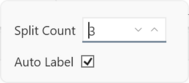
To configure the split settings, expand the drop down button, set the split count and select the option for auto label if you wish for the result to be auto numbered. Note that the new tasks will be predecessors of the original task. If the duration cannot be divided equally, vPlanner will assign the largest duration to the original task after the division.
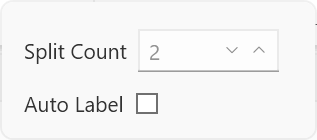
Figure 37 – Split Tool Options
 |
 |
 |
|
9-Day Activity Before Split
|
|
Result of the Split into 3 Activities
|
Production Tasks: A premium user (Production Manager and up) can convert activities to Production Activities. Production Activities should be reserved for Takt Activities as they receive special priority during calculations.