
6.2.3. Import MS Project XML
vPlanner can read schedules from MS Project using the XML format and will recognize up to 14 Text fields and map them to matching user fields in vPlanner.
You should never import from two different MS Project files into the same project in vPlanner. vPlanner relies on MS Project UID values as the External ID. There is no guarantee that those are unique between different Project files. Importing from two different project files into the same vPlanner project will likely scramble your logic ties. It is safe however, to keep importing from the same MS Project file as the UIDs will be the same. So as a best practice, setup a master MS project file and always use that same file as the source for exporting to vPlanner.
|
Prepare the MS Project File
Step 1: Use the MS Project Text fields (1 to 14) to send text codes from MS Project to vPlanner User fields.
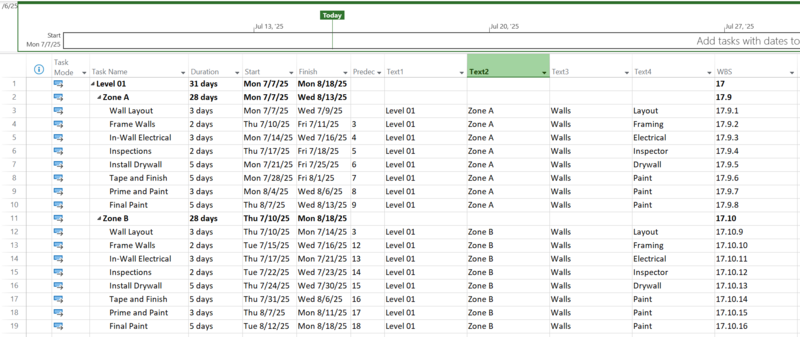
Figure 77 – Example of Coded MS Project Schedule
Step 2: Export the MS Project file to XML.
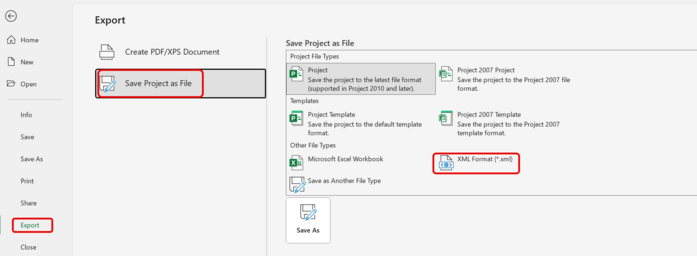
Figure 78 – Export to XML
Step 3: Use the Import Manager to open the XML file. If the file is valid, you will see some summary text in vPlanner about what is in the file. Click Next to continue.

Figure 79 – Summary of XML file information
Step 4: In the Filter screen you can now apply filters to select part of what is in the xml file or keep as is and click Next to go to the preview screen. If you applied filters, only the result of the filter will be imported.

Figure 80 – Filter Options Screen
Step 5: In the Preview screen you can update logic ties or delete tasks that you do not wish to import. You can undo the changes if you make a mistake. Click Import when ready to finalize the import.
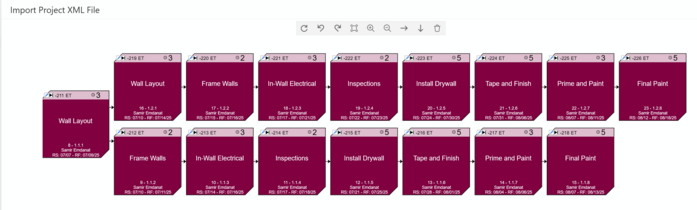
Figure 81 – Preview Screen
Step 6: You will now have the imported tasks in the project in semi-live mode. You can review them in the context of other tasks in the project or cancel by discarding the changes or save and go live again. If you accepted the import results, you will need to use the vPlanner search tools from the filter to select by User field values and manually assign to vPlanner attributes to organize the result.
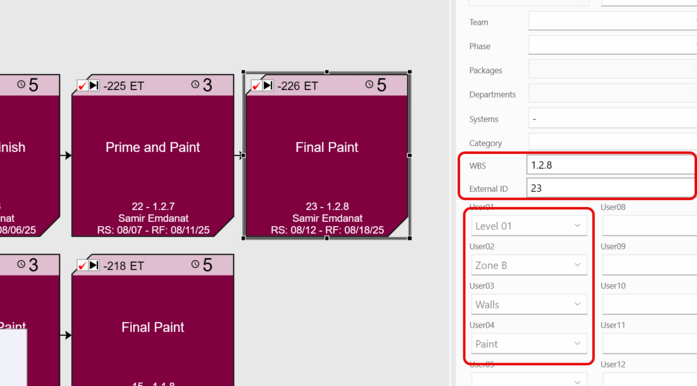
Figure 82 – Final Result - User Fields, WBS, and External ID populated from MS Project Data