3.4. Visual Planning Vocabulary
vPlanner applies a consistent visual vocabulary to represent the components of a plan so users can move from one project to the next, focusing quickly on the plan itself instead of having to learn how a plan is represented in different projects.
This section illustrates the elements of the visual vocabulary used in the Manage, Focused, Pull and Sandbox working views.
Task Graphics
The below image illustrate the meaning of the symbols and information that appears on a task box.
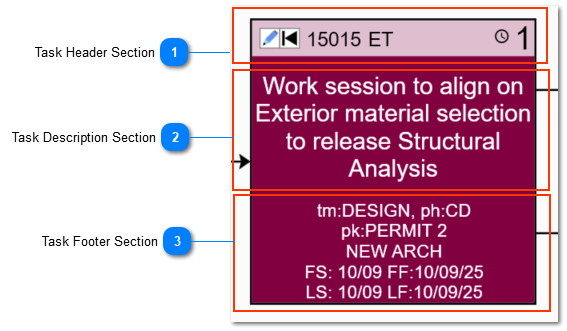
Task colors are by default derived from the Company color or the Discipline color. You can also color code the tasks based on the color associated with their assigned category attribute. Those settings can be configured under the Preferences ribbon. The Affiliation settings will use the Discipline color if one is available or will default to the Company color.


The Attributes and symbols displayed on a task are shown in the image below.
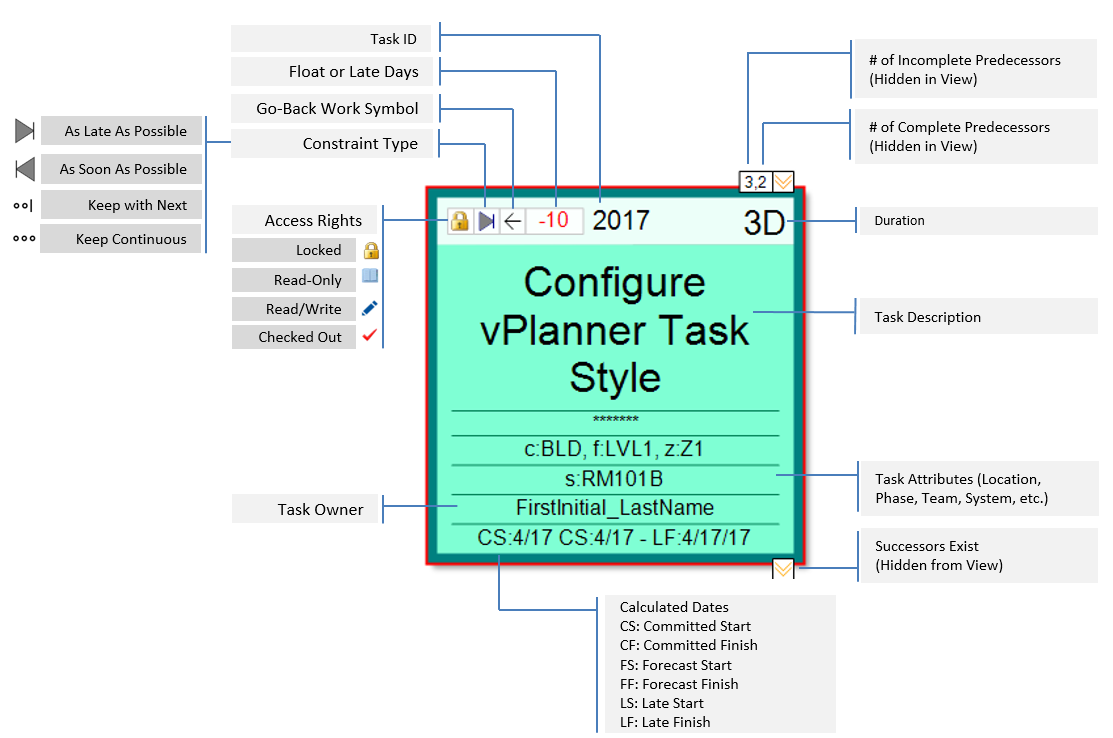
Figure 10 – Task Attributes Display
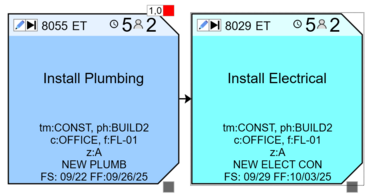
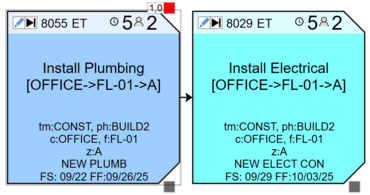
You can configure the graphics of how the attributes are displayed using the Preference menu. For example you can set up the task box to include the location of the task in the description section without actually adding the location text in the description.
 |
 |
|
Default - Task Description for tasks assigned to locations
|
The location of the tasks is added automatically to the task description
|
Task Colors
The default color for tasks is the Company color. The Affiliation option gives priority to the Discipline color over the Company color. If a Discipline is not assigned to a User, then tasks assigned to that user will show the associated Company Color. The Category color will override task colors to show the color of the Category attribute assigned to the task.
Note that the result of the task color settings depends on whether the Project Administrator has setup Category or Discipline colors for the Project and assigned them accordingly.
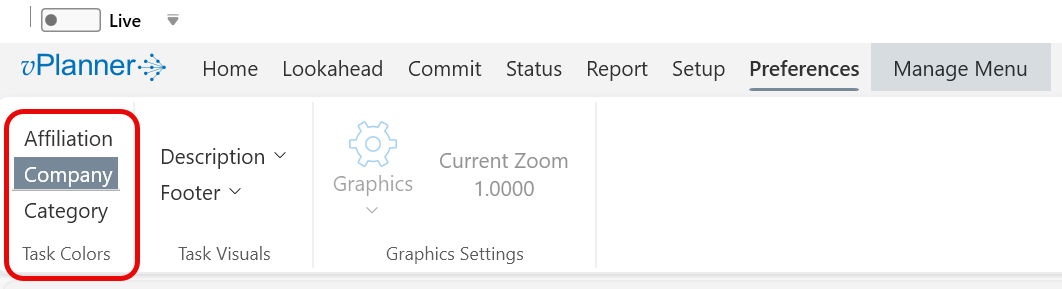
Figure 11 – Setting the Task Color Preference
Task Types
The shape of a task in vPlanner reflects the task type. Below are the visual representations of the vPlanner task types.
The default task size is 288 x 288 screen points which represents a 3x3 post-it note in real world coordinates. In the Manage View a task's size can be stretched temporarily within a view to emphasize it's content but it will return back to its default size when a Project is reloaded. Tasks retain their adjusted sizes in the Pull and the Sandbox view until they are reset to default size.
There are two groups of task types in vPlanner, Unconstrained and Constrained tasks. Unconstrained tasks are those that have no fixed dates and will be calculated based on the logic ties to other tasks in the plan. Constrained tasks are those that get assigned a Required Start (RS) or a Required Finish (RF) date by a user, providing date constraints to the calculation engine.
Unconstrained Task Types
Unconstrained task types are assigned their dates automatically based on their position in the plan logic. The calculation engine will automatically update their dates as the plan is updated. Unconstrained task types will display Forecast Start (FS) and Forecast Finish (FF) Dates and may also have Last Responsible Moment Dates (LS and LF) when they are connected to downstream targets. Note that completed tasks will show actual dates (AS and AF dates), while committed tasks will have Committed Start and Finish dates (CS and CF).
|
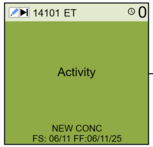
Activity
|
This is the default task type and represents a normal activity.
|
 |
|
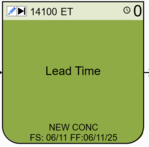
Lead Time
|
This task type indicates a lead time activity. Use this to indicate long lead items visually such as procurement lead times or to find them quickly by applying filters.
|
 |
|
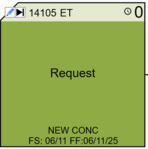
Request
|
Requests are automatically assigned by the system when non-admin users assign tasks to other users. Requests can be edited by any user until the request is accepted by the user assigned to the request at which point the default permissions will apply. Requests provide teams with a flexible way to work freely on a pull plan while it is being developed. Task owners can accept requests to convert them to an Activity task type.
|
 |
|
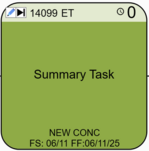
Summary Task
|
Summary tasks improve the organization of a complex pull plan and its readability. Use them to describe the state of things so that the next thing is released to start. For example, once the roof and the skin tasks are complete in a certain work area, the area can be declared "partially dry", partially dry would be a summary task that now links to the items in the plan that wait for that. Summary tasks as a best practice should have a zero duration.
|
 |
|
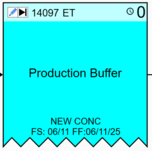
Production Buffer
|
Production buffers are special tasks that can be placed before key milestones and after risky parts of the work to shield the targets from uncontrollable variation. Production buffers should have a duration. The duration will reduce automatically causing late paths to appear for the preceding tasks. A team can choose to accelerate the work to regain the buffer or reduce the buffer to eliminate the late path. When the buffer is consumed then the late path will affect the milestone. The color of the buffer starts as cyan when it is not being used. It turns to red as its duration reduces due to late paths.
|
 |
|
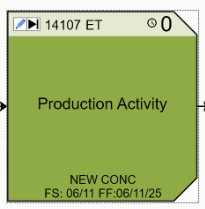
Production Activity
|
Production Activity tasks are special tasks reserved for takt activities. When a task is turned into a production task, vPlanner gives it priority during calculations and will restrict its modification to production managers and admin level users. Users will be able to status Production Activities but they will not be able to modify them.
|
 |
|
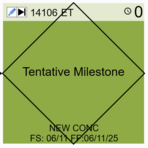
Tentative Milestone
|
A Tentative Milestone provides a visual way to flag general activities as a potential milestone. They act like normal activities until the team is ready to set a target date for them using a Start Date, Planning Marker or Milestone type (see below).
|
 |
Constrained Task Types
Constrained task types are assigned Required dates by a User. Those dates will constrain when the task should start (Start Date type) or when the task should finish (Planning Marker or Milestone task types). The calculation engine will use the user defined required dates to prioritize the work that comes before and to forecast any successor activities based on the assigned dates. Constrained task types can be given a duration in vPlanner. However, if you plan to export to CPM tools, then the best practice is to assign them a zero duration for compatibility with legacy CPM tools since these tools do not allow for non-zero duration targets.
|
Start Date
|
A Start Date task type has a start constraint fixed to the morning of the assigned Required Start (RS) date based on the time zone assigned to the task.
|
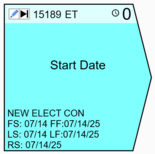 |
|
Planning Marker
|
A Planning Marker is a special type of finish milestone that allows users to fix the finish date of the task to the end of a selected Required Finish (RF) date based on the task calendar time zone. Use Planning Markers to fix dates for certain tasks that are within the team's control and identify them visually as such.
|
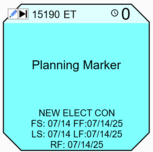 |
|
Milestone
|
A Milestone task type works like a Planning Marker but will have a different visual representation. Use Milestone types to represent targets that are outside of the team's control (i.e. Major Milestones).
|
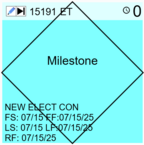 |
|
Imported Activity
|
Imported Activities are tasks that are not native to vPlanner and are imported from legacy CPM tools like MS Project of P6. They will have a fixed Required Start (RS) and a fixed Required Finish (RF) date provided from the CPM schedule. vPlanner treats an Imported Activity task as special milestone that is both a Start Date and a Planning Marker. The duration in between the RS and RF dates is displayed for reference and represents the duration of the task in the original CPM schedule. Imported Activities should be converted, or split to create vPlanner native tasks so you can pull plan between them. When you split an Imported Activity vPlanner will automatically convert it into a Start Date (RS) and a separate Planning Marker (RF).
|
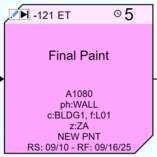 |
Task Status Indicators
The border graphics of a task in the Manage View represent a task's status. Planned tasks have a default thin border. When tasks are flagged as commitments they will have a thicker border around them. The color of the border indicates the Status type:
-
Teal border tasks ToDo tasks and have a Committed Pending status. This indicates that they are flagged to go on a workplan as commitments once a workplan is created. The teal boarder is added when a User flags a task that they are committing to do.
-
Purple border tasks are Workplan Commitments and will show a Committed Start and Finish date (CS, CF) indicating the frozen FS and FF dates at the time the Workplan is created. Committed Pending and OnGoing tasks are switched to Committed tasks when a Workplan is created. Users are not able to assign this status directly as it get assigned when a team manager creates the workplan from users' commitments.
-
Light Purple border tasks are Committed Unplanned Constraints, which are constraints added to Workplan Commitments. vPlanner will automatically assign this status when linking something directly to a Committed task.
-
Orange border indicates an OnTrack (or OnGoing) status. A Workplan Commitment (purple border) can be flagged as OnTrack to indicate its progress to finish as Committed and will automatically adjust its remaining duration. If the task is running early, a User can reduce the remaining duration and the task forecast will pull ahead of its Committed Finish (CF) date.Otherwise, a task will indicate its status per the graphics in the below image.
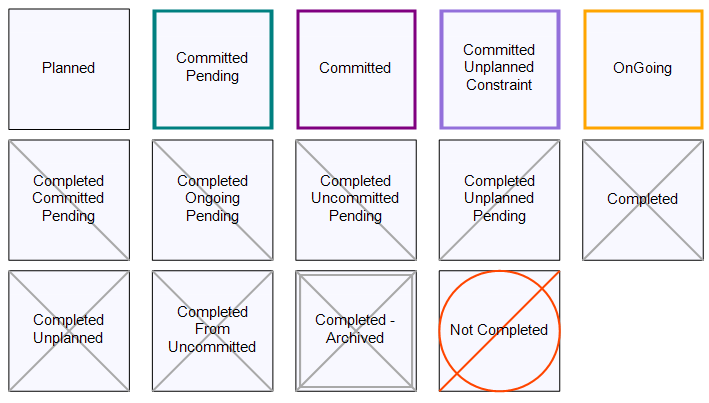 Figure 12 – Task Status Indicators
Task Constraint Types
Task Constraint Types are important for controlling how vPlanner calculates the plan and are indicated by a symbol on the upper left of each task. Task Constraint Type symbols visually identify tasks as either As Late As Possible (ALAP), As Soon As Possible (ASAP), Continuous, or Keep With Next (KwN). The default Constraint Type is ALAP indicated with a triangle symbol pointing to the right, as shown in task 905 below. The next (task 904) is ASAP indicated by the triangle symbol pointing to the left. Task 903 is defined as Continuous work (three dots), and the last task 902 is Keep-with-Next.
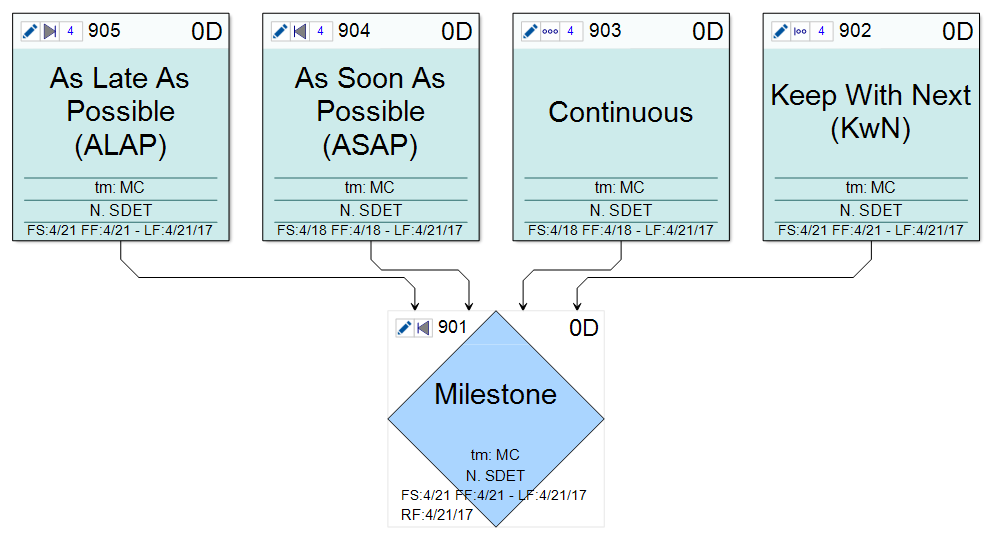
Figure 13 – Task Constraint Types