9. Using the API
The API integration is only available to users with Site Administrator access level.
To use the API, admin users can obtain an API Key that will allow access to vPlanner metrics directly from Power BI or other tools that support API call like Excel or Microsoft Access.
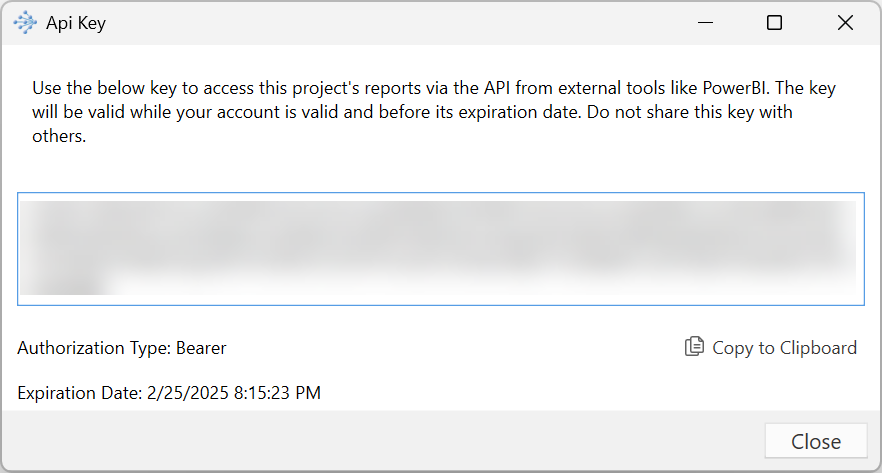
For this to work, a user has to request the API key using the vPlanner client from the Setup menu. The key will enable read-only access to vPlanner PPC metrics and Variances data.
You should treat the API key like a password and do not share it with anyone. The key will be valid for 1 year while the Site Administrator account is valid and enabled. If the Admin user's account is disabled, the key will stop working.
|
Generating the API Key
Go to Ribbon / Setup and click on Generate API Key. Note that if you regenerate a key, it will invalidate the previous key of similar scope.

Valid API Requests
Valid API requests can be made using one of the following paths that you can use depending on the type of report you would like to produce
PPC - All Active Projects: https://client.vplannerapp.com/api/workplanmetrics/allprojects
|
PPC - Single Project: https://client.vplannerapp.com/api/workplanmetrics
|
Variances - All Active Projects: https://client.vplannerapp.com/api/workplanmetrics/variances/allprojects
|
Variances - Single Project: https://client.vplannerapp.com/api/workplanmetrics/variances
|
Using the API Key in PowerBI
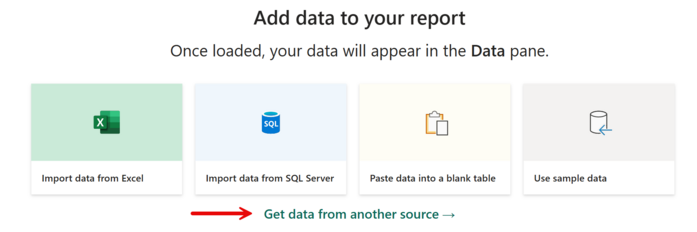
Figure 108 – Select Get Data from Another Source
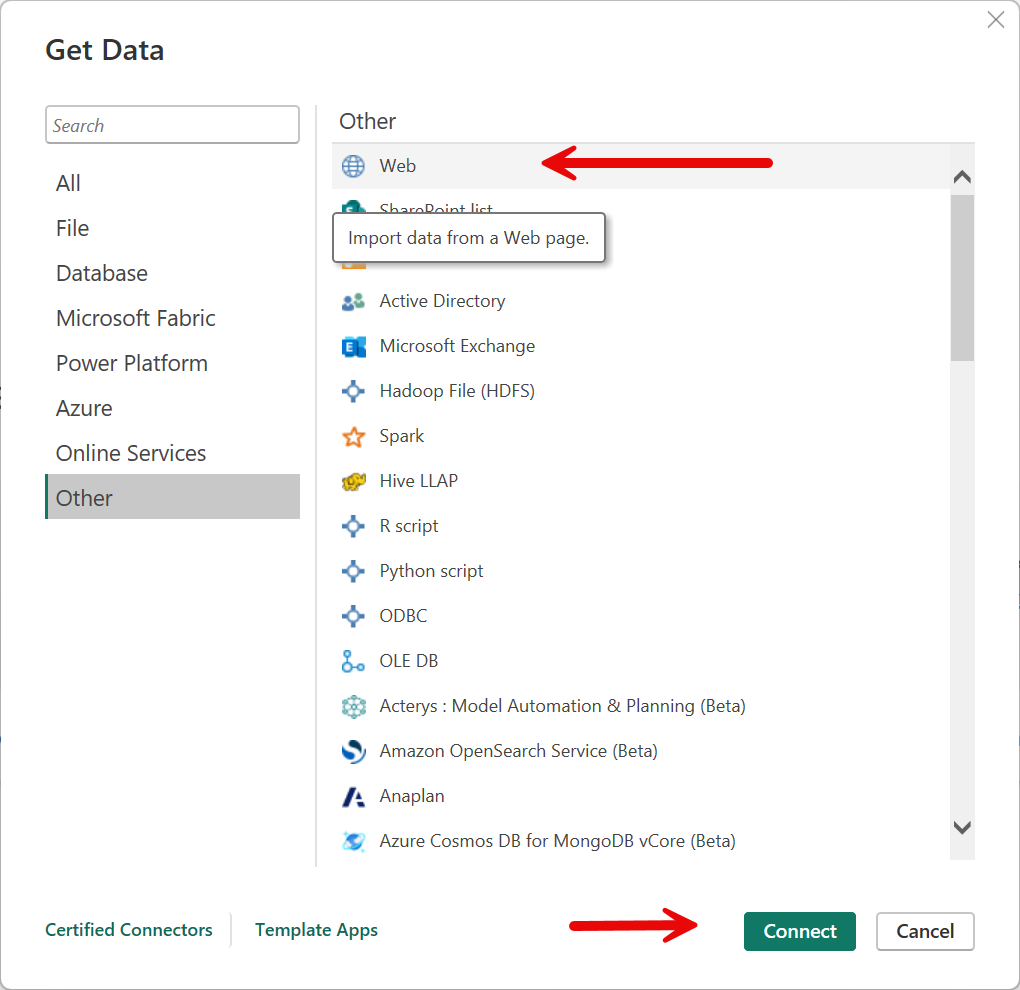
Figure 109 – Select Web Under Other
Under HTTP request Header Enter: Authorization in the first box.
Enter: Bearer APIKEYVALUE in the second box. You should be able to connect and get data from the vPlanner server. When you click OK, you should be able tp pull data from the vPlanner API into PowerBI.
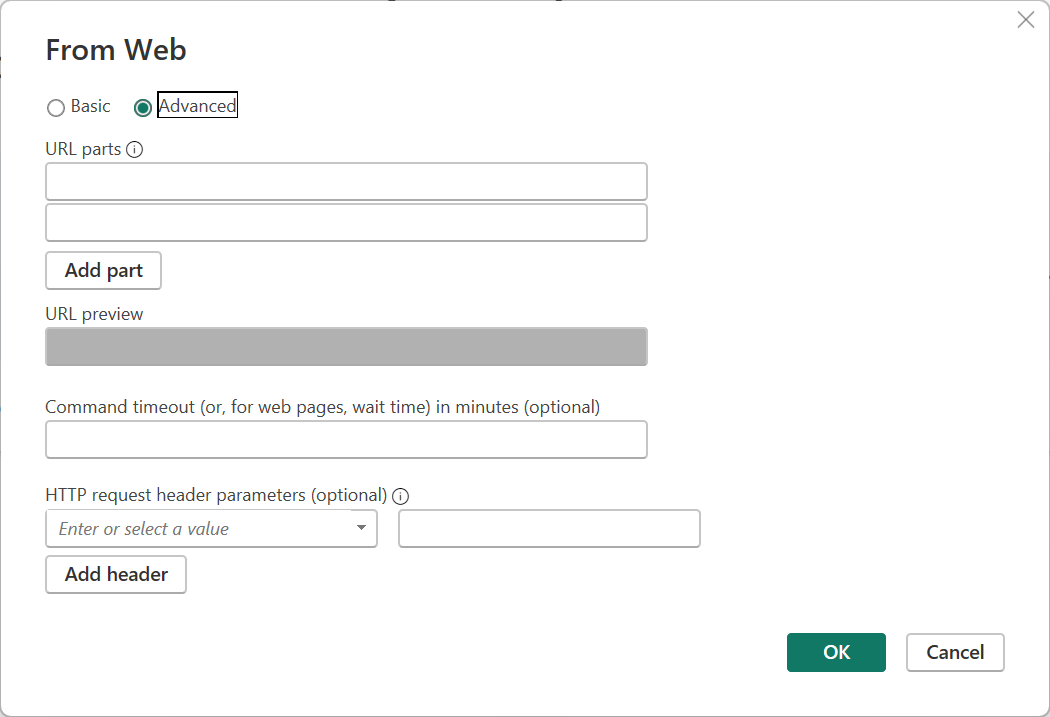
Figure 110 – Populate the URL and Header Request and click OK