4.3. The Pull and the Sandbox Views
The Pull View is an interactive whiteboard where team members can collaborate in real-time on parts of the production plan.
The typical workflow is that a user with a team manager or higher would create a Pull View from scratch or would isolate certain tasks from the Manage View to be in the Pull View, then the expanded team would open the Pull View to work together on creating work sequences to achieve an agreed upon target. The changes made during the pull session are automatically reflected into the main production plan.
You can have the same tasks from the Manage View in many Pull Views. This is different in V5 than in V4 where a manage task can only be in one Pull View.
|
A Sandbox Box works similar to the Pull View except that tasks in the Sandbox are not reflected in the Manage View automatically. A Sandbox can be published to convert it to a normal Pull View.
To Open a Pull View or a Sandbox you can click on the vPlanner logo in the ribbon or the Open button in the Manage View.
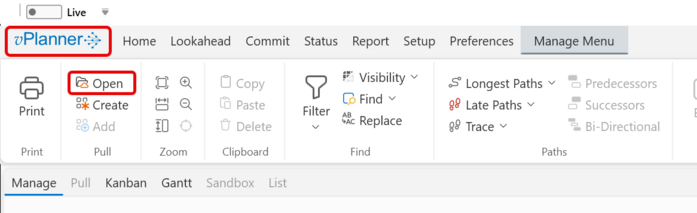
Figure 26 – Opening a Pull View
You will then be switched to the backstage menu items where you will see the Pull Plans menu item.
If the Pull Plans menu item is not selected, selecting it will show the Pull Plans panel. If there are defined Pull Plans in the project you will see them appear as tiles in this panel otherwise it will be empty.
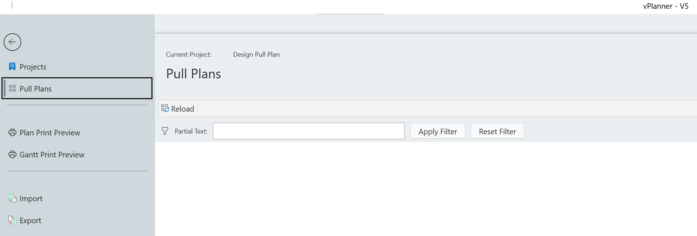
Figure 27 – Empty Pull Plans Panel
When there is a Pull Plan you will set its tile under the Active section. Click on the tile to select it and reveal the Open button. Click the Open button to open the Pull View.
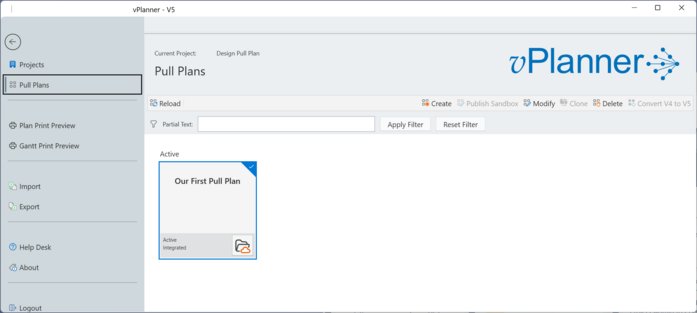
Figure 28 – Pull Plan Panel with One Pull Plan