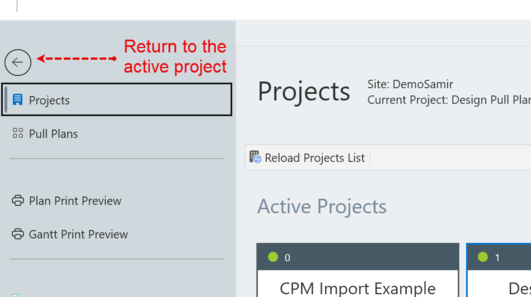
3.1. The Projects Page
The Projects page will appear after you successfully login to a vPlanner site. A project tile will display for each project that you have access to. Project tiles display the project name, your role, and the number of tasks in the project. Your project specific role will be displayed on the project tile. You can learn about roles in the User Roles section.
If you see nothing under Active Projects, then your account is valid for the site but your have not been added to any of the projects. Contact your site admin users whose name appears in the invitation email so that they can add you to a project.
|
For Users
Click on a project tile to activate the tile and reveal the small icon on the lower right. Click again on the small icon to open the project. Once the project is opened, the projects page will disappear and the main working window will become visible.



Opening a Project: Select the project tile and click the folder icon that appears when the project is selected.

Once a project is opened and the vPlanner Main Window is displayed, the status bar at the bottom will show the name of the current Site and Project that is open.

To return to the Projects page, click on the vPlanner icon on the top-left side of the application window. Click the back arrow on the upper left corner of the projects page to return to the active project.

Figure 6 – Accessing the Projects Page