The home menu includes general tools that do not fit in the other menus but it can also be used to edit or status any selected task or tasks from the various working views.
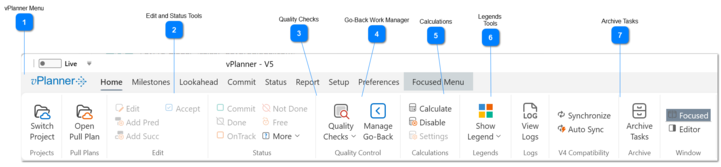
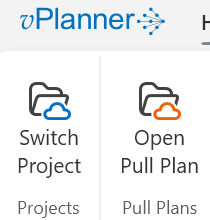
 vPlanner MenuYou can switch projects or open a pull plan or a sandbox within the active project from the vPlanner menu or the two shortcut buttons right below it.
|
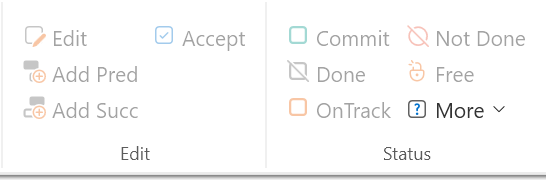
 Edit and Status ToolsThe edit and status tools from the Home Ribbon apply to any selected task or tasks in an Active View. Active Views can be the Manage View, the Focused View, the Pull View, the Sandbox View, the Gantt View, or the Kanban View. The buttons will highlight based on a valid selection and it honors the user permissions.
|
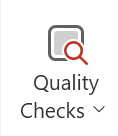
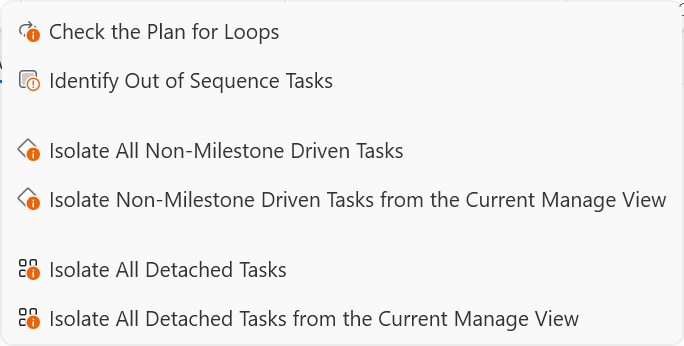
 Quality ChecksUse the tools under the quality checks section to improve the quality of the plan. For example, you can isolate tasks that are part of an emerging loop that prevent the calculation engine from running. Or identify out of sequence work such as tasks that are marked complete without their predecessors being complete.
Use the isolate non-milestone driven tasks to find parts of the pull plan that are no longer informed by a milestone target. Without a target, the pull cannot be applied to prioritize the work.
Use the isolate detached tasks to find tasks that are no longer connected to any other active tasks.
|
 Go-Back Work ManagerThis opens the Go-Back Manager so you manage go-back tasks. Go-Back tasks are created when a committed task is completed with go-back work. Go-Back work can be simple or complex. Complex go-back tasks may require special pull plans. The go-back manager allows you to either check go-back tasks off or insert them back into the plan so that they can be part of future pull plans.
|
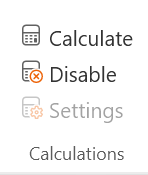
 CalculationsYou can calculate the plan or disable calculations. The calculations settings are not yet active in V5.
|
 Legends ToolsYou can use the tools here to create legends for company colors or task types used in the project.
|
 Archive TasksAdmin level users should periodically archive their old project tasks. For large projects, this keep the plan size smaller and easier to manage on lower end user computers. To archive tasks, pick a date in the pop up tool and any tasks closed prior to that date will be archived. vPlanner will leave tasks that are linked to active tasks alone to maintain visual continuity. Next time the project is opened, the archived tasks will not be included. You can forced them to be included by checking the Include Archived Tasks button before opening the project from the projects panel.
|
|