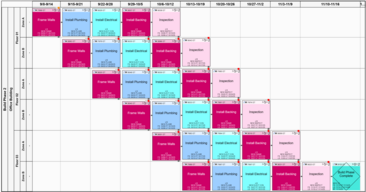
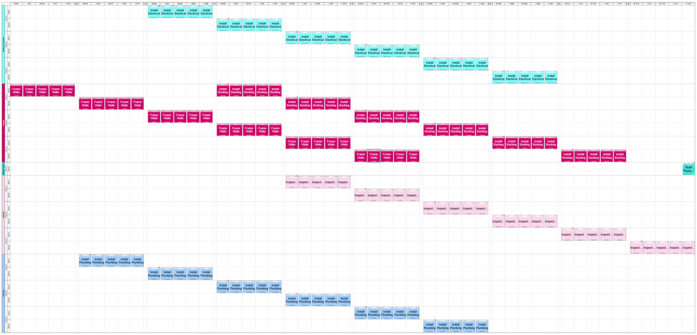
The Daily Planning Board is a special view that you access from the Manage View. It can be used to produce a read-only view of the plan that represents each multi-day task in the Manage View as a series of single day activities. If the activities have resources assigned the resource forecast will be shown below the daily board.
Because the Daily View has the potential of producing thousands of tasks, it is designed to automatically hide tasks outside of the first few weeks but you can change this default from the ribbon view (see below). If the Manage View has tasks and the daily view shows no tasks, then expand the number of weeks shown in the daily view as there may be no tasks that fall in the immediate future.
You have multiple Daily Planning Boards open at the same time.
Manage View without Dates
Manage View with Weekly Calendar
Figure 29 – Daily Planning Board with Resource Chart of the Same Tasks
Figure 30 – The Daily Planning Board Ribbon
Print
Sends the content of the Daily Planning Board to the Print Preview so it can be printed.
Synch with Manage
Replaces the content of the Daily Planning Board with tasks that are currently visible in the manage view.
Find in Manage
When you select a task in the Daily Planning Board, you can click this tool to find it in the Manage View.
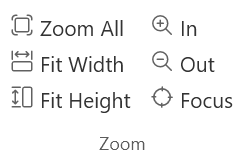
Zoom
Those are the standard Zoom tools for the Daily Board.
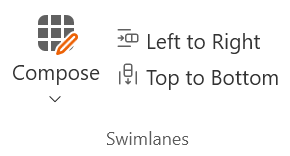
Swimlanes
You can use the Swimlanes Composer to change how the Daily Planning Board displays the tasks in the Swimlane. Here are some examples.
Figure 31 – Organized by Location
Figure 32 – Organized by Company then by Location
Visible Range
Use those shortcuts to set the number of days to show on the daily planning board counting from the current date in weeks or to show the entire timeline. You can also set a user defined range by selecting from the pull down calendar.
Resource Chart
Shows or Hides the resource chart that is associated with the daily planning board.