2.2. Resetting Your Password
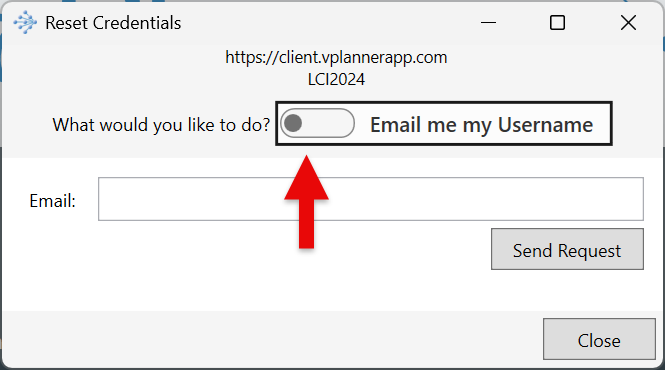
If you forget your Password, you can enter the Site name and then click on the "Forgot Something?" link below the Password box to reset your login credentials. You must enter a Site name which is your key to access the system and to reset your login credentials for that Site. If you do not know the Site name you would need to request it from someone else on the project. If you know your Username, you can reset the Password. If you do not know your Username and Password, first request your Username and then reset your Password via the steps below.
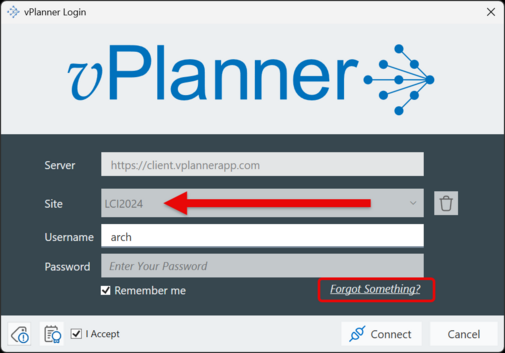
Figure 4 – The Login Screen
Resetting The Password (Username is Known)
Enter the Site name and your Username on the login window and then click on "Forgot Something?" which will open a Reset Credentials window. Type your email and then click the "Send Request" button. If the information you enter matches what is set up for you on that Site, then the system will send you a code via email that you need to enter into the "Verification Code" box to validate your email. If the validation is successful, the system will send you a new temporary password via email that can be used to login. Follow the Logging In process using the new temporary password.
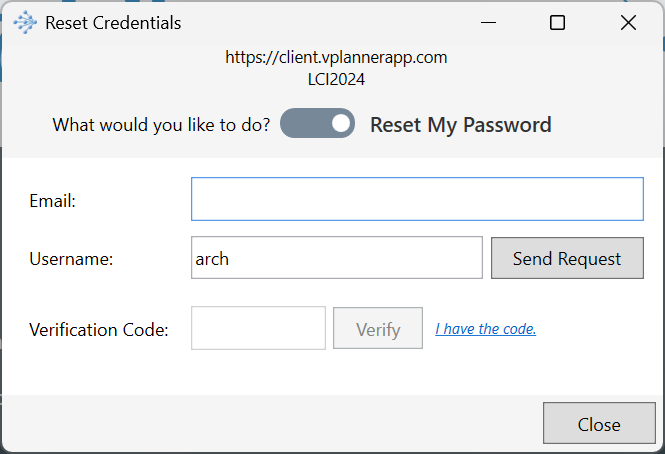
Requesting a Username Reminder
If you have the site name but you do not remember your username, you can use the same process as above, but change the slider button from "Reset my Password" to "Email me my Username". Provide your email address and if it matches the email found in our system and if the email is associated with only one username, you will receive the username via email and then can proceed with the password reset process above.
If your email is associated with more than one username, you will need to ask a Site or Project Admin user to reset your password for you.
|