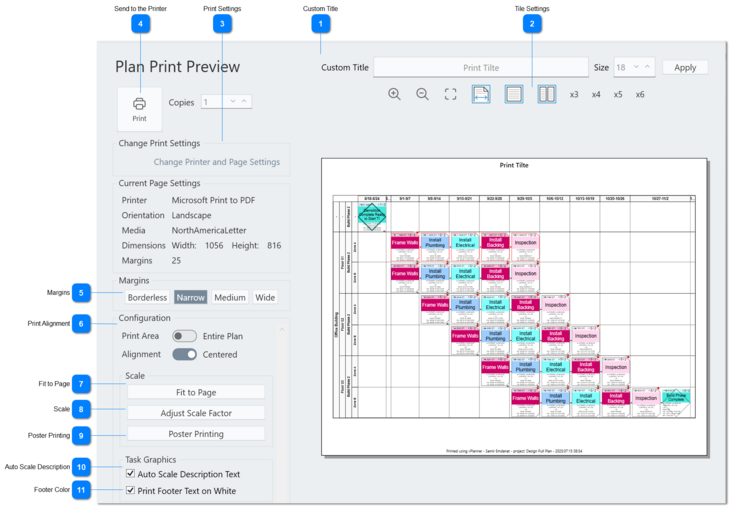
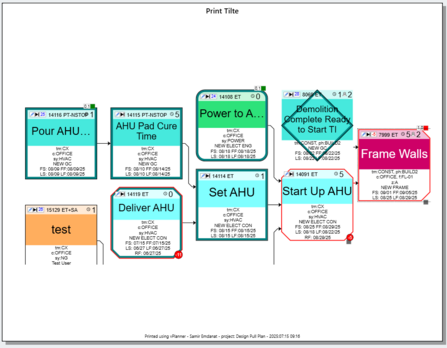
You can add a title to the printed page by typing the text here, setting the desired size, and then clicking the apply button to preview the result.
Tile Settings
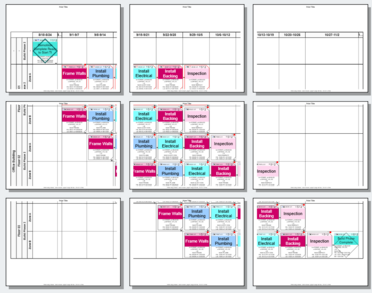
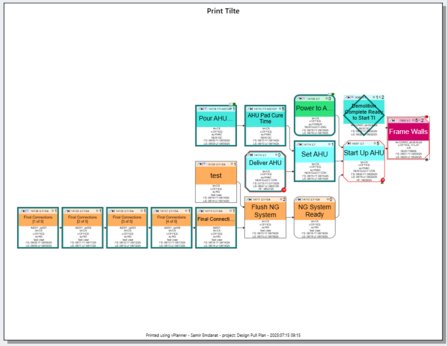
Use this section to fit the preview to the screen or to tile the pages if you are printing using the poster print settings and want to see all the pages arranged in a grid (Poster with 3 columns with the x3 button pressed).
Print Settings
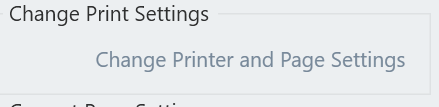
This is where you would select the printer and set its page size preferences etc. vPlanner will take you to the print dialog setup for the printer directly. The interface will vary depending on your printer as we do not control the content of this dialog but we use it to read the printer name and the print / page settings that are specific to that printer.
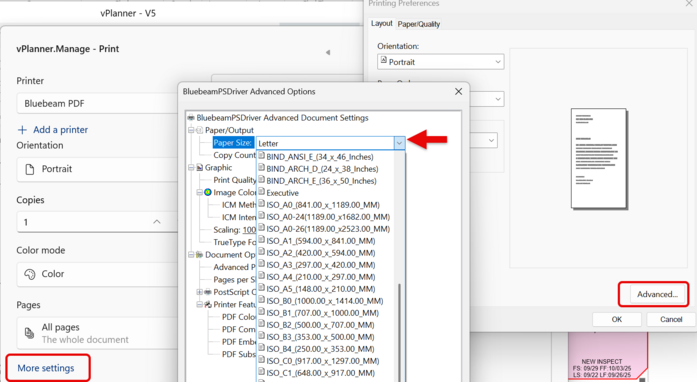
Figure 97 – Microsoft Print to PDF printer. Click More Settings to change paper size
For Bluebeam follow the steps below to set paper size:
Figure 98 – Bluebeam Paper Size
Send to the Printer
Use this button to print once you have configured the print settings.
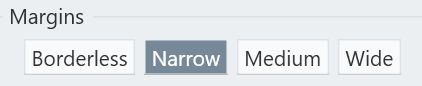
Margins
You can use this setting to reduce or increase the margins around the printed result or to print without borders if your printer supports that setting.
Print Alignment
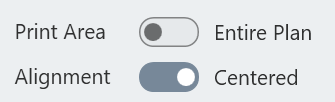
You can print the entire plan even if it is not at the proper zoom level in the original view or force printing of the visible parts of the plan in the viewport.
If the plan is smaller than the page, you can print it centered on the page or aligned to the top of the page pushing the white space to the bottom
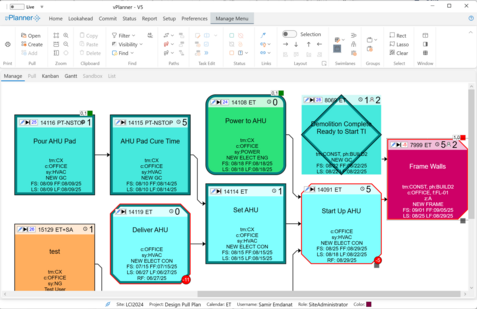
A plan in the Manage View
Printing the Viewport
Entire Plan Top-Left Aligned
Entire Plan Center Aligned
Fit to Page
Fits the plan on a single page and sets the scale appropriately.
Scale
Control the scale factor. If you set the scale factor to 1, then the printed tasks will be 3x3 inches matching the standard size of the post-it note on paper.
Poster Printing
Rather than control the scale to size of the print, you can control the printed size by setting a constraint on how many pages to fit the plan on in rows or columns (not both). vPlanner will scale the plan to fit the desired number of pages you enter.
Auto Scale Description
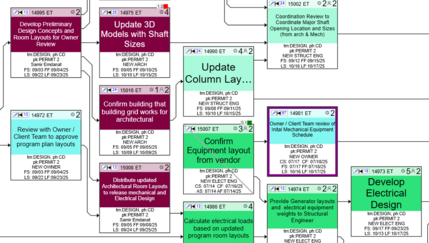
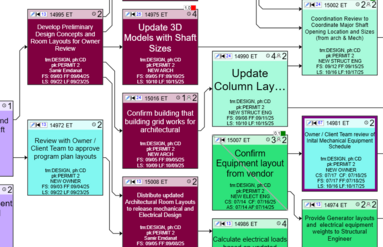
Keep this setting on to produce plans that are easier to read. With this setting on, vPlanner mimics how humans write on post-it notes. The description text size will be scaled up or down depending on the length of the description and the available space. Tasks with more text will have a smaller font and tasks will less text will have a larger font size.
Auto Scale On
Auto Scale Off
Footer Color
The small text below the task description is usually smaller font. vPlanner will print it automatically on white to make it easier to read. You can turn this off and print on the same color as the body of the task.