6.3.4. MS Project XML File
The MS Project XML export will produce an XML formatted for importing the data into MS Project. You can choose the specific vPlanner attributes to export to MS Project and they will be converted to Text fields with the appropriate attribute names from vPlanner. You can then group the resulting file in MS project to create a hierarchy base on those Text Fields. The produced file will have constraints imposed on the tasks and the tasks will be set up to Auto Schedule in MS project.
Here are the steps for Exporting to MS Project.
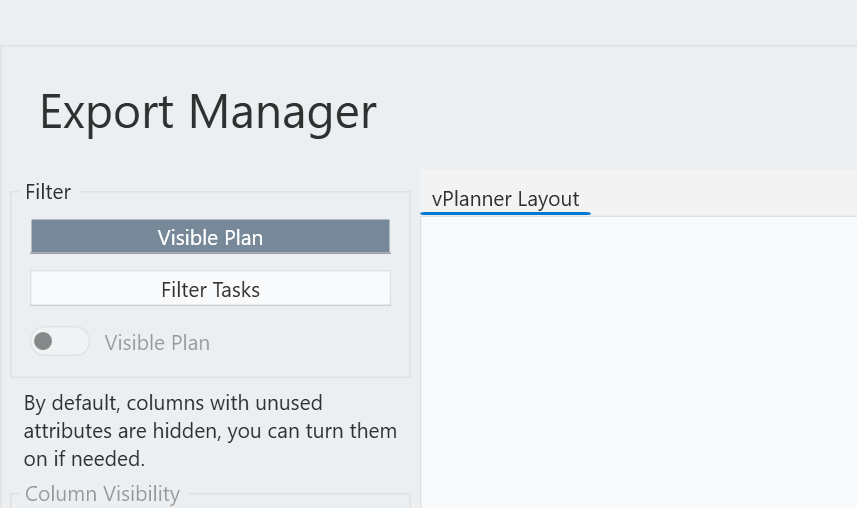
Step 1 - Filter the tasks that you wish to export in the Manage View, then click the vPlanner icon and click Export. You should see a preview of what will be exported in the network view of the Export Manager. To export to MS Project (or any format) click the Filter Tasks Button to switch to the list view of the Export Manager. At this point all the export options will be highlighted. If you had nothing visible in the Manage View, click the switch button next to switch from Visible Plan to Entire Project. This will load all the tasks in the list view and you can filter down from there using the list view column filters. Only the visible rows in the list view will be exported.
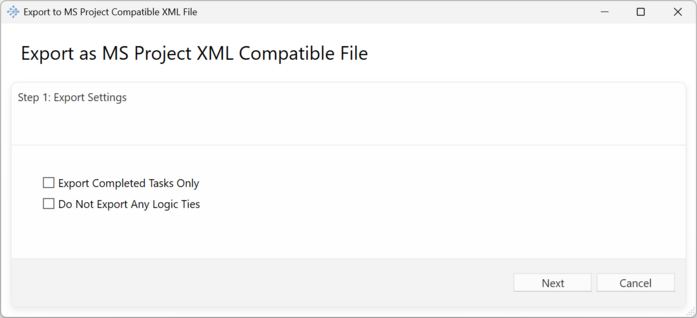
Step 2: Configure any special settings for the export from the Export as MS Project Window. Click Next.
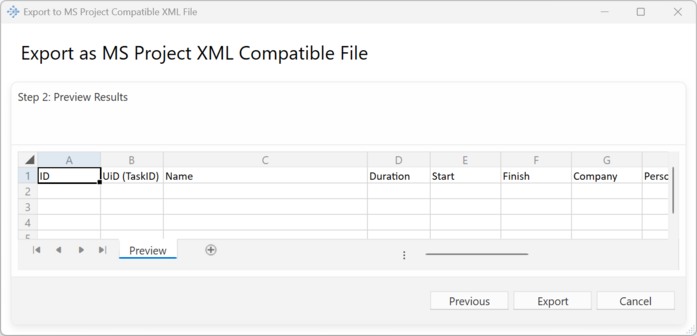
Step 3: Click the Export button to complete the export. The resulting XML file can now be imported into MS Project.