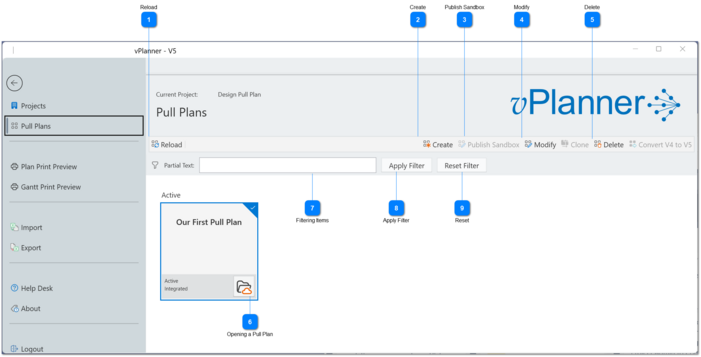
4.3.1. Managing Pull and Sandbox ViewsUsers with Team Manager role or higher can Create Pull Views. The panel will show both Pull Items and Sandbox Items. The Sandbox items are distinguished by the yellow border around them.
 ReloadManually reload the list of Pull Plan items in case they are out of synch with the server due to network issues. Note that vPlanner notifications will automatically update this list but in case of network interruptions, the list can be reloaded without having to reopen vPlanner.
|
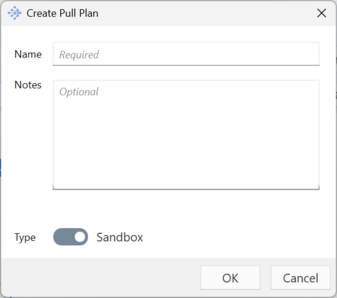
 CreateTeam Managers can use the Create button to create a new Pull View or a new Sandbox View. The slider at the bottom of the Create window can be used to set the type of the created item to be a Sandbox or a Pull View. A Pull Plan requires a name and can have an optional description.
We recommend that the description be used to record notes about the contents or revisions made to the pull view with the most recent edits on top of the list so that they are visible on the tile preview.
|
 Publish SandboxThe Publish button is only highlighted when a user with Team Manage role or higher selects a Sandbox tile.
It allows you to convert the Sandbox to a Pull Plan. The content of the Sandbox will then become integrated and visible in the Manage View. If the Published Sandbox was open before it is published you will need to re-open it as a Pull View. Once published a Sandbox cannot be Unpublished.
|
 ModifyThis button is used to rename an item, update its description, or change its status from Active to Locked to Archived. Locked items when opened will be read only. Archived items cannot be opened.
|
 DeletePull Plan items can be deleted. Deleting a Pull Plan item only removes the item. The content of the Pull Plan (i.e. tasks and logic) will remain as they are in the Manage View and will not be deleted.
Deleting a Sandbox however will remove the Sandbox and delete its content since it is not published.
|
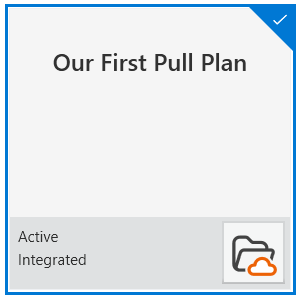
 Opening a Pull PlanA Pull Plan Tile when selected, will show a folder in the lower right corner. When this folder is clicked, the Pull Plan will be opened.
|
 Filtering ItemsWhen there are many Pull Plan and Sandbox items in the view, the list can be filtered down based on text you type in this box.
|
 Apply FilterClick the this button to apply the filter based on the partial text you typed in the text box.
|
 ResetClicking this button will reset the filter and display all the available Pull Plan and Sandbox items.
|
|