8.8. Managing Project Users
To add, update, or remove project users, use the Project Users button. When the project users list is first opened, the master list will be hidden. You can show the master user list by clicking on the menu item from the left panel "Add Users to the Project"
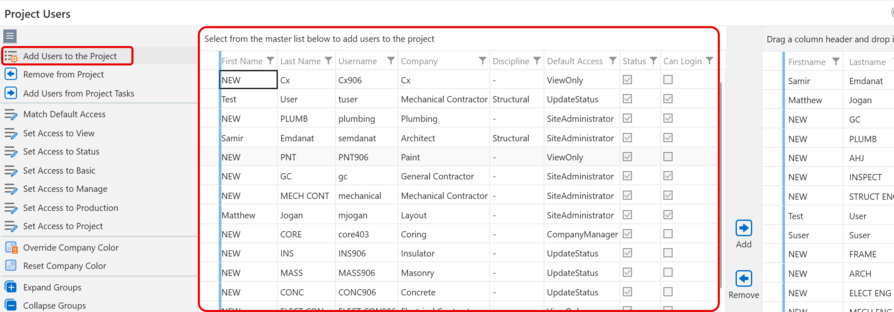
Figure 106 – Showing the Mater Users List next to the Project Users List
Adding Existing Users to a Project
Select user rows from the master list and click the Add button to add those users to the project. If they are already in the project nothing will change for those users. When users are added to a project, their project level access will match their default access.
Removing Users from a Project
Select the users you want to remove from the project from the project list and click the Remove button to remove them from the project. If a user has tasks assigned to them in the project they cannot be removed from the project until all of their tasks are assigned to someone else.
Changing Project Permissions
A user in vPlanner can have a Project Access that is equal or less to their Default Access. Select the users in the project list, click one of the [Set Access to ...] buttons to modify their permission in the project.
To understand Access Levels follow this link: Accounts and User Roles
|
Company Color Override / Reset
You can override the company color in the project or reset it to the default. Select a user in the company can click modify company color to change the color of the company in the active project only. The changes will apply to all users that belong to that company.