4. Main Working Views
The Main Window contains several working views including: the Manage View, the Pull View, the Kanban View, the Gantt View, the Sandbox View, and the List View (note that the list view is not yet active). You can work in any of those views and the changes you make will be reflected in all other views.
Activating a Working View
You can activate a view by clicking its header in the tab to make it visible, or you can click inside the view to make it active. When a view is active, its ribbon menu will become active as well. The View's ribbon menu contains tools that are applicable to the view.
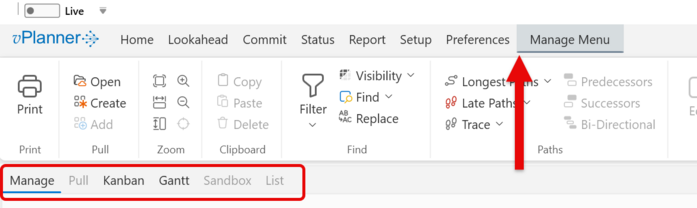
Figure 14 – Switching between the Working Views
Detaching and Docking Working Views
Working Views can be peeled off and docked anywhere in the main window or they can be detached and moved to another monitor. The below is an example showing the Manage, Kanban, and Gantt Views docked inside the Main Window. In this case the Gantt View is the Active View as its header is filled with blue and its ribbon menu is visible.
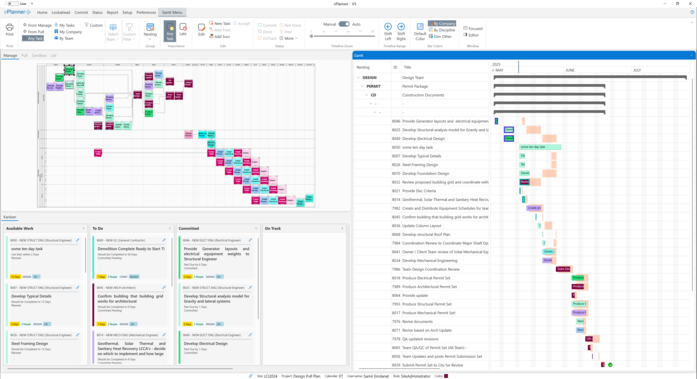
Figure 15 – Docked Working Views on the Same Monitor
At any time when you are working in the Manage View or the Gantt View you can switch to the Lookahead, Commit, or Status ribbon menus as they apply to those views.
The Pull and Sandbox views will be grayed out by default. They become active once you open a Pull Plan or a Sandbox.
|