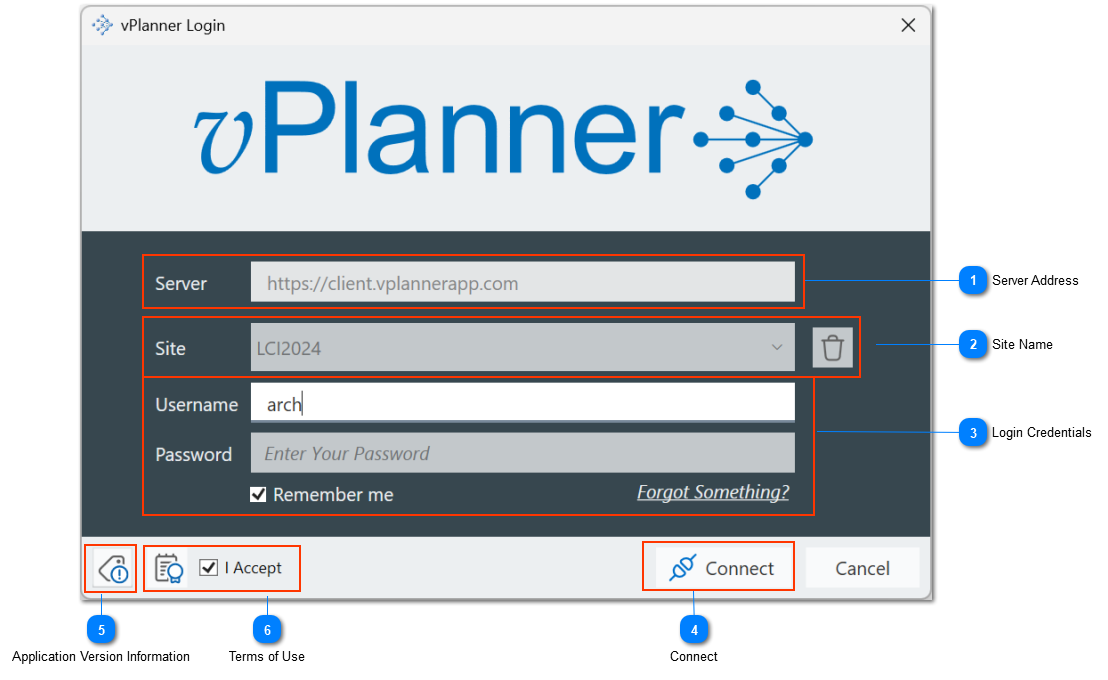
vPlanner projects are organized into Sites. To access a Site, you need to know the Site name, your Username, and your Password.
The initial invite email will include a temporary password to use with your first login on your project's vPlanner Site. Immediately upon first login, you will be asked to create your own password for that Site to replace the temporary password.
The Login Window
Server Address
The standard vPlanner server address is https://client.vplannerapp.com. The address box is read-only by default and in most cases does not need to change. However, double clicking on the address section will allow you to modify the address when your enterprise subscription references a different server than the default server.
Site Name
The Site name section is where you identify the vPlanner site where your project or projects are housed. It is an editable pull down and the Site name needs to be provided the first time you login.
Once you login successfully the Site name will populate in the Site pull down menu so you can use it next time.
To remove a previously saved entry, select it from the pull down and then click the Trash Bin button to the right of the Site name box.
Login Credentials
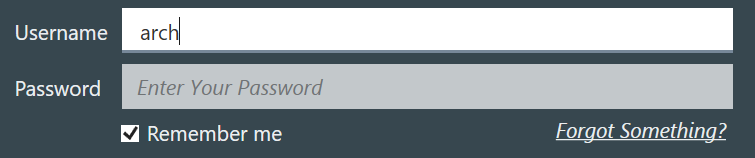
If the "Remember me" button is checked before you login and after you enter your login credentials, vPlanner will add the information to the Site pull down and remember your login credentials for the next time you try to login to vPlanner.
Use the "Forgot Something?" link below the password box to reset your password or request a reminder of your username. You need a valid email for this process to work and the email must match the email that was set up for you in the system for that Site.
Do not check "Remember me" if you are logging in from a computer that is shared with other users since this will remember your login credentials.
Connect
When the Site, Username, and Password are provided and the "I Accept" terms of use button is checked, the Connect button will highlight. Click on Connect to establish a connection.
Application Version Information
Click this button to view the current vPlanner application version number.
Terms of Use
Click the icon to review and check the box to accept the vPlanner Terms of Use. The "I Accept" terms of use button must be checked to login.