8.1. Adding or Modifying Projects (Site Admin Users)
If you are a Site Administrator, you will be able to manage the projects for your site from the toolbar at the top of the Projects page.
Active vs. Archived Projects: Drag the project tile from the Active projects section to the Archived Projects section. The project will no longer be available to users. Drag a project tile from the Archived Projects area to the Active Projects area to make it active again.
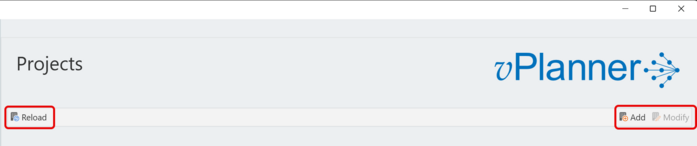
Figure 102 – Managing Projects
Add a Project: Click the Add button to bring up the Add Project Window and configure the new project. Each project should have a default calendar. You can also control how vPlanner forecasts and set up attribute override labels to certain vPlanner attributes.
Modify a Project: select the Project Tile and then click the Modify button to bring up the project properties window. You can use the Project Properties window to rename a project, change its status, assign its default calendar or configure the cut off hour for calculations defaults. You can also customize the labels that vPlanner uses for most Attribute tags to suite the needs of your project.
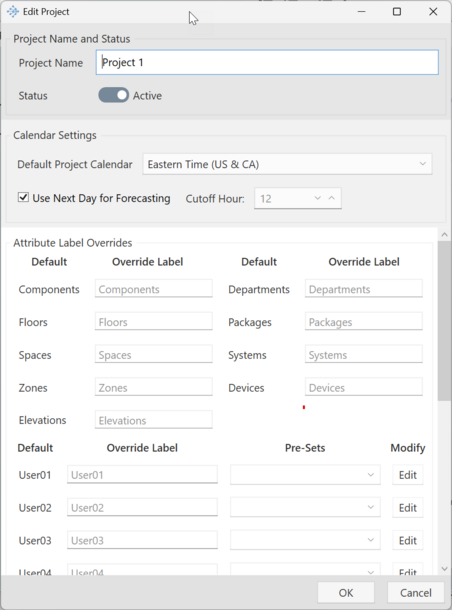
Figure 103 – Project Properties Window